 See it in action
 Free gift slot: gift with purchase (AndOr Offer picker block)
On this page
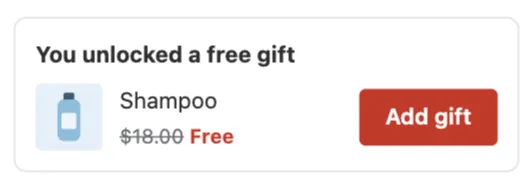
The free gift widget shows a free gift deal in two places: a short line on product pages, and a gift slot in the cart page and the cart drawer. The slot shows the gift, and either adds it for the shopper or lets them add or choose it with one button.
Made by: a Free gift promotion, or each gift tier of a Tiered rewards promotion. How the slot adds and offers the gift is set per offer in Gift settings.
For developers: Code · Styling · Events
What shoppers see
On product pages
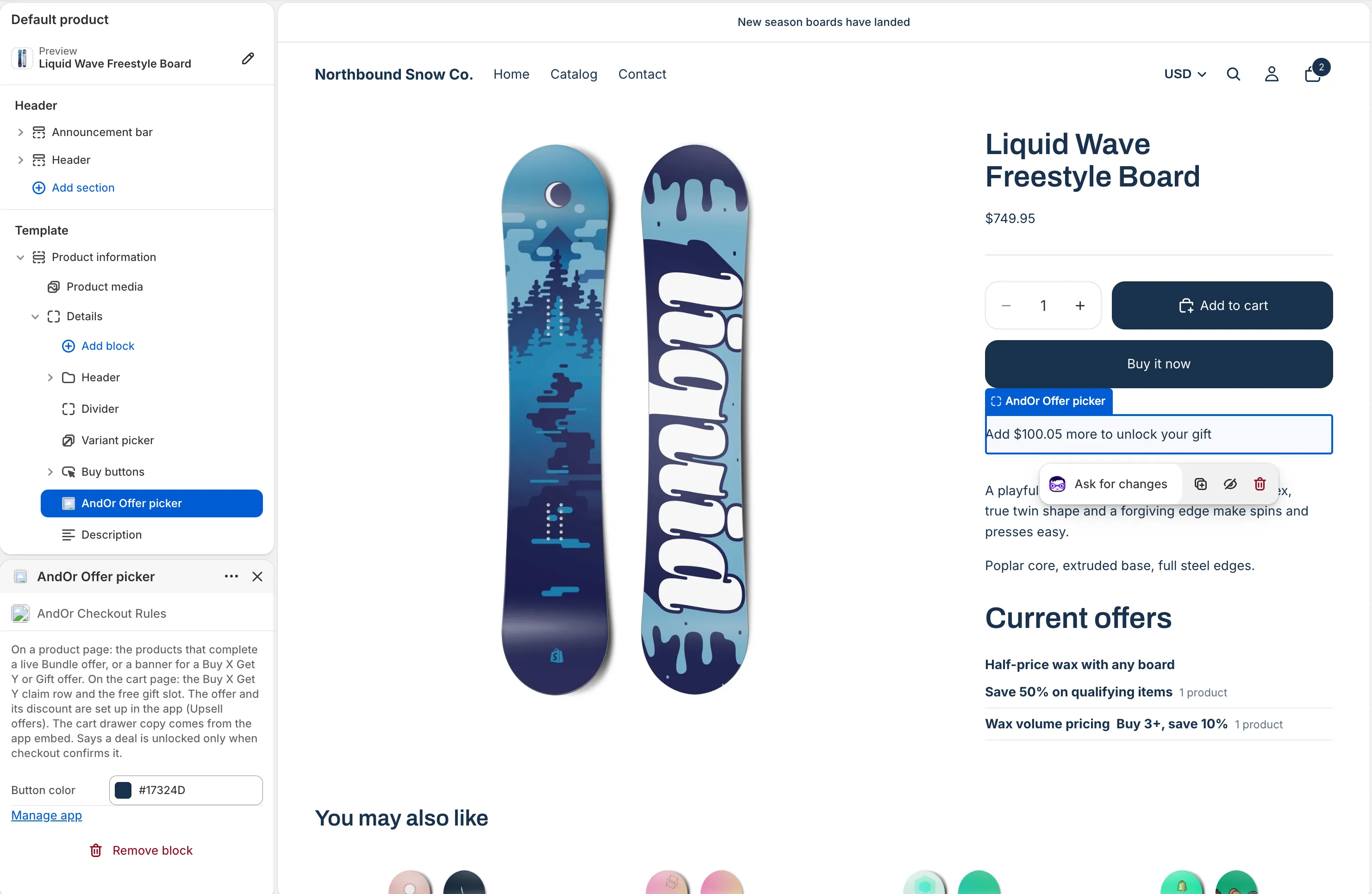
A short line with your offer message, for example “Add $12.50 more to unlock your gift”. There is no product list here. Once the cart qualifies, the line says “Claim your free gift in your cart.” Once checkout applies the gift, it says “Your free gift is unlocked”.
In the cart: the gift slot
The gift slot is one box with a title and one row. It keeps the same size in every state, so the cart does not jump.
The slot has these states:
- Locked: Greyed out. The title “Your free gift” (or “Choose your free gift” when there are several), the gift images, “Add $12.50 more to unlock your gift” and a thin progress bar. No button.
- Adding: “Adding your free gift” while AndOr adds it for the shopper.
- Unlocked, one gift: “You unlocked a free gift”, the gift, its old price struck through, “Free” and Add gift.
- Unlocked, several gifts: “You unlocked a free gift”, up to 3 images, “3 gifts to choose from” and Choose gift.
- Removed: “You removed your free gift. Add it back anytime.” with Add it back or Choose gift.
- No longer free: “Your gift is no longer free. Your cart no longer qualifies.” with Remove gift.
- Applied: One line: “Your free gift is unlocked”.
- Another discount won: One line, for example “Your gift isn’t free because 20% off! is applied. They can’t be combined.”
An empty cart shows no slot.
Choose gift opens the gift chooser.
The gift never pays for itself
Only other items count toward the amount that unlocks the gift. Example: the gift unlocks at $50. A shopper has a $45 item and the $10 gift in the cart. The cart is $55, but other items are only $45, so the gift is not free yet. The slot says how much more to add.
When another discount could win
If a discount that can’t be combined with the gift could win at checkout, the slot shows no price and no “Free”. Its title becomes “Choose your free gift. Your other discount may apply instead.” AndOr also never adds the gift for the shopper in that case.
Where it goes
| Place | How it gets there |
|---|---|
| Product page (line) | AndOr Offer picker block on the product template |
| Cart page (slot) | AndOr Offer picker block on the cart template |
| Cart drawer (slot) | The app embed, AndOr Discount Display |
Tick the places in the offer’s Where it shows section. Gifts are added in the cart, so tick Cart page or Cart drawer.
Note The cart drawer, and updates the moment the cart changes, need a theme that sends Shopify’s storefront cart events. Horizon 4.0+ and Dawn 15.5+ do. On other themes, shoppers see this widget on the cart page and product page. It updates on the next page load. See Theme requirements.
Add the block
Note App blocks need an Online Store 2.0 theme. On an older (vintage) theme, turn on the app embed and paste the one-line tag instead. See Theme requirements.
The free gift line and the cart gift slot come from the AndOr Offer picker app block. It is the same block the bundle card and Buy X get Y use. Your upsell offer decides what it draws.
To the cart page
-
Open the theme editor on the cart template.
In Shopify, go to Online Store > Themes and click Edit theme. Pick Cart in the page menu at the top.
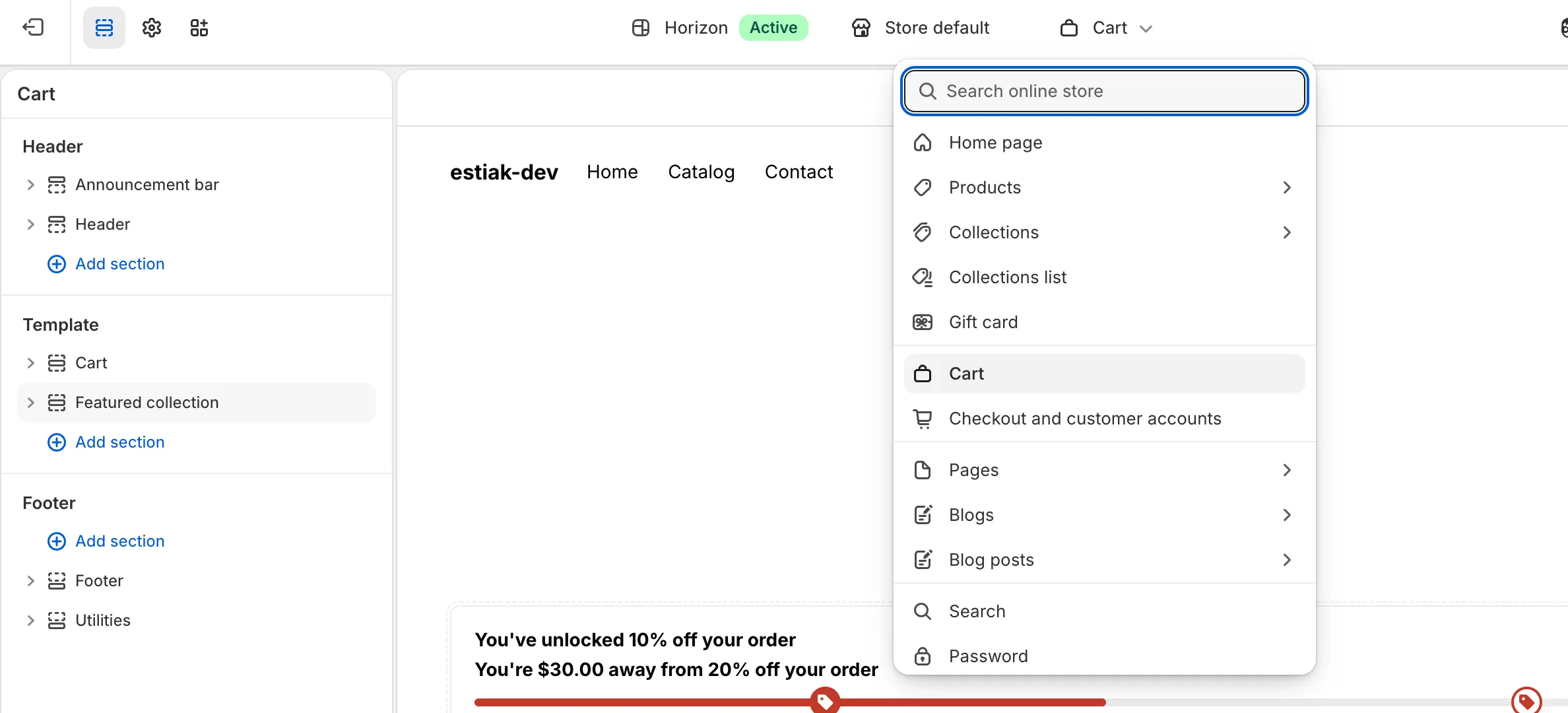
-
In the cart items section, click Add block, then pick AndOr Offer picker under Apps.
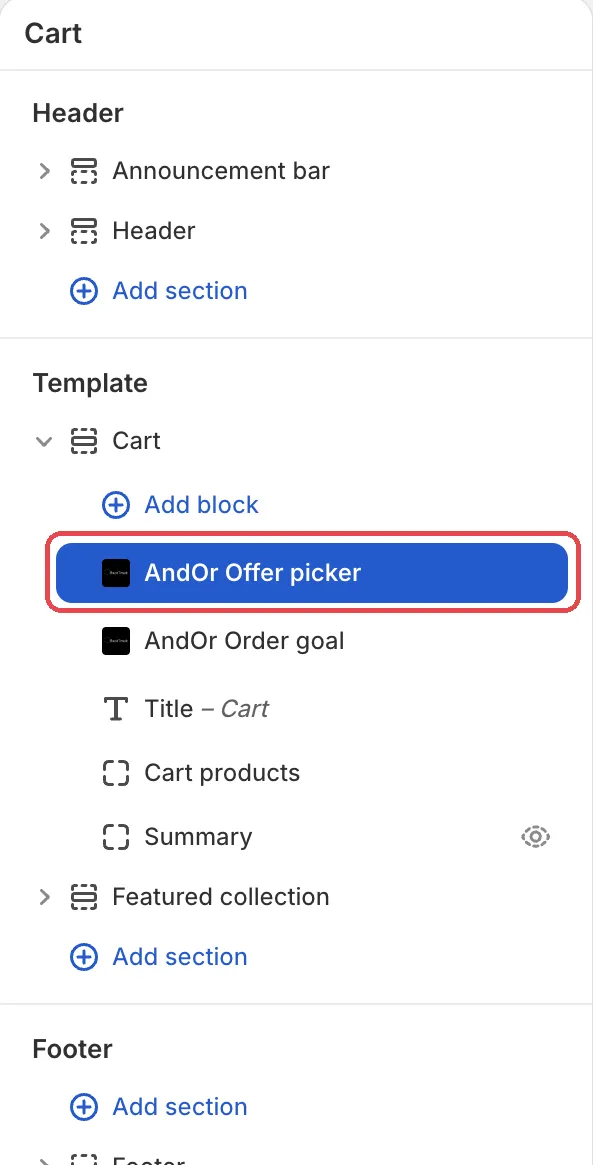
-
Drag the block under the cart items, then click Save.
The gift slot shows there once the cart has items.
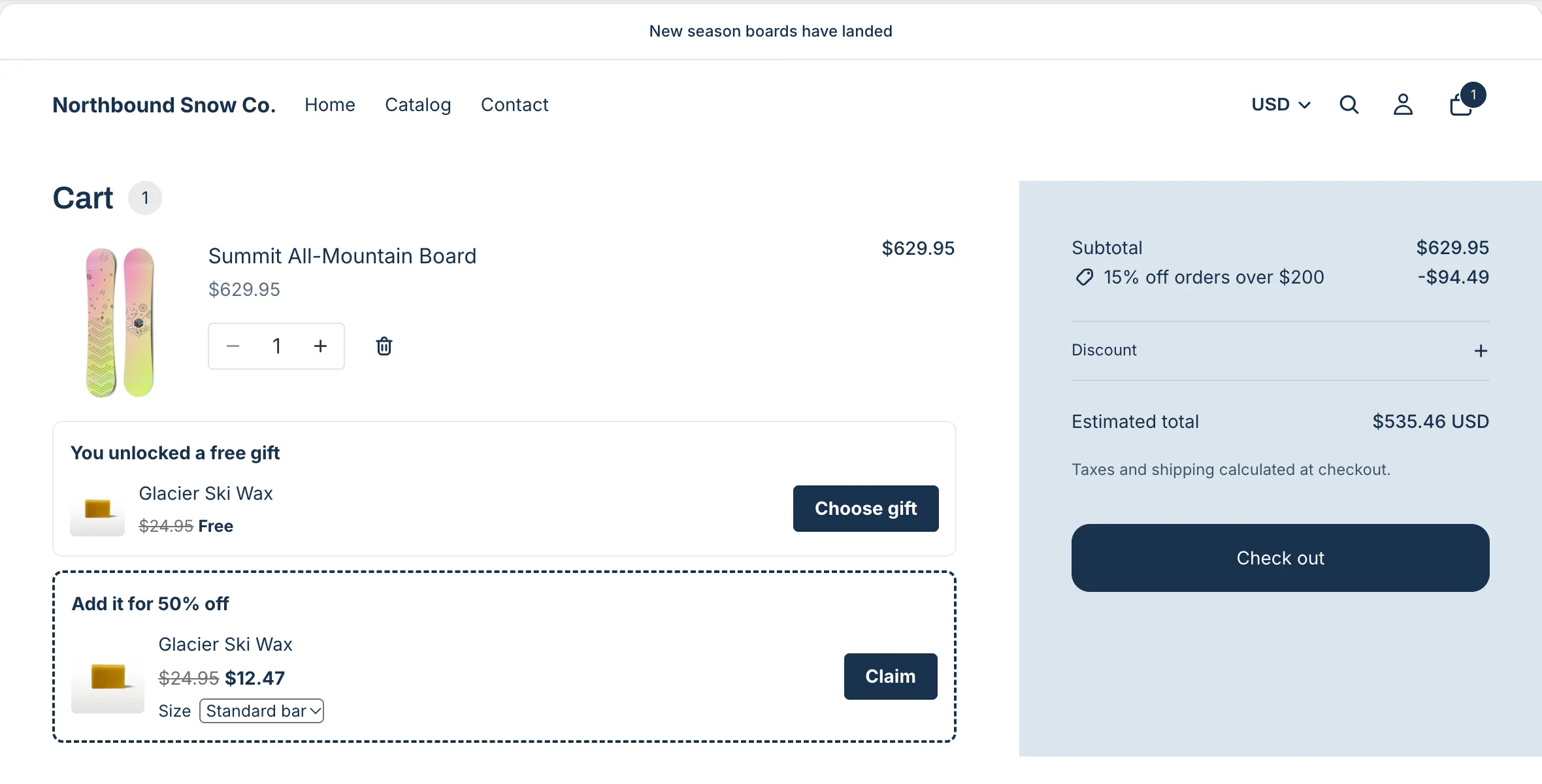
To the product page
-
Pick Products, then your product template, in the page menu. In the product information section, click Add block and pick AndOr Offer picker.
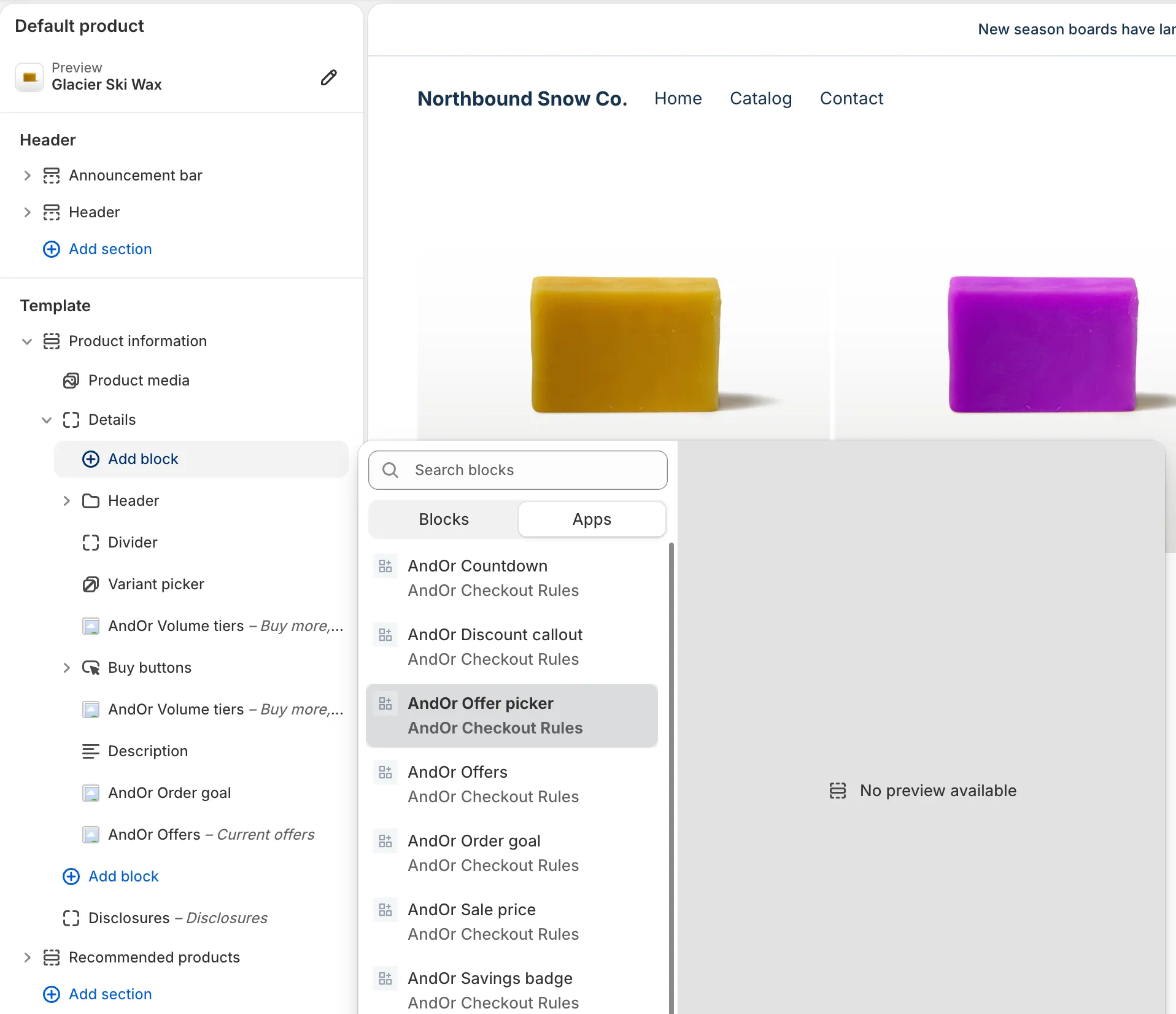
-
Drag it under the buy buttons and click Save.
Product pages then show the short gift line.
Note You can’t place a block inside a cart drawer. The drawer gift slot comes from the app embed. Keep AndOr Discount Display on and tick Cart drawer in the offer.
Or paste the tag
If your theme has no place for an app block, a developer can paste a tag into the theme code instead:
<andor-claim>on the cart page, under the cart lines, draws the same gift slot.<andor-offer-picker>on the product page draws the same gift line.
Both tags need the app embed on. Do not paste a tag where the block is also placed, or shoppers see it twice. See One-line tags.
Block settings
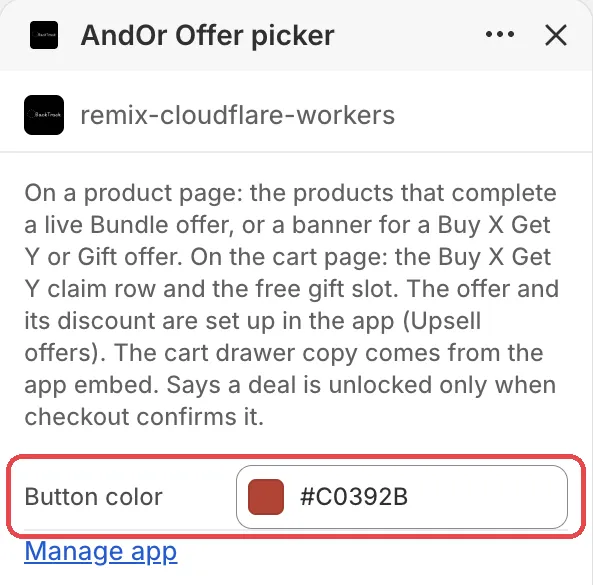
The block shows a short paragraph that explains what it does, then one setting.
Button color
The color of the gift slot’s buttons (Add gift, Choose gift, Remove gift) and of “Free”. Left at the default, it follows the app embed’s Sale price color, or else your brand color.
Default: #c0392b.
Gift settings live in the app
How the slot behaves is not a block setting. It is set per offer, in AndOr, under Gift settings:
- Add the gift for the shopper
- Let shoppers choose their gift
- Open the gift chooser when the gift unlocks
- Don’t add the gift again after the shopper removes it
- Reload the page after a gift is added or removed
See Gift settings for what each one does and its default.
What it needs to appear
- Optional: the app embed. The block shows without it. The embed adds your shared look settings, text changes, the cart drawer parts and one-line tags.
- The gift discount shows on your storefront.
- A live upsell offer of type Free gift is linked to the discount.
- The AndOr Offer picker block is on the cart template (and the product template for the line).
- The gift is automatic (no code). The shopper can buy any product to earn it, and the gift items are named products, variants or collections.
- The gift is 100% off. A single minimum cart subtotal is fine. Other conditions are not.
- Add the gift for the shopper or Let shoppers choose their gift is on, so the shopper has a way to get it.
Show it in more places (code)
To show it where your theme has no slot for the block, paste a line of code. See Free gift slot: Code.
Limits
- A gift tied to a specific buy product (“buy this board, get wax free”) is not a free gift here. Use Buy X get Y.
- A gift with a code, or with a condition other than one minimum subtotal, does not show.
- Add the gift for the shopper works only when there is one gift option (one product with one available variant).
- When the cart is in a different currency than your store, a gift with a minimum subtotal does not show, because there is no exact amount to name.
- Two gift offers show two slots. Each title then starts with the discount’s name, for example “Free wax: You unlocked a free gift”.
- When a goal bar sits beside the slot and its next milestone comes first, the slot drops its amount line and progress bar, so the shopper reads one next step.