 See it in action
 Savings badge: sale and discount badge (AndOr Savings badge block)
On this page
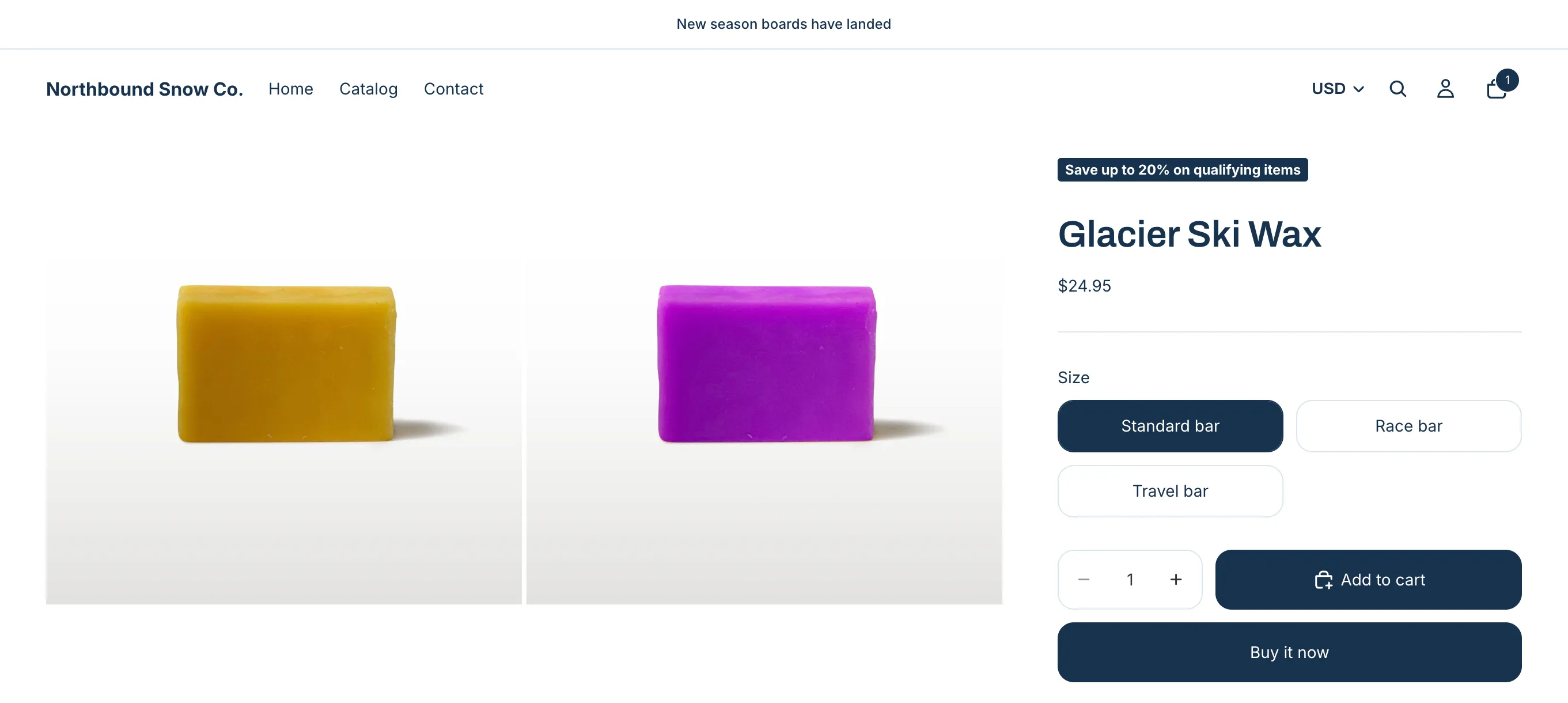
The savings badge is a small chip that shows the saving, such as “Save 20%”. For a code discount, it shows the code with a copy button.
The badge shows the product’s own saving only. An order discount, like 10% off orders over $50, never shows as a badge, even when the product has no saving of its own. It shows in the goal bar and the cart instead.
Made by: a Savings badge promotion, or any discount AndOr can show. See Show discounts you already have.
For developers: Code · Styling · Events
What shoppers see
| The badge says | When |
|---|---|
| “Save 20%” or “Save $5.00” | A plain discount applies. |
| “Save 25% on orders over $50.00” | The product’s discount needs a minimum order amount. |
| “Use code AUTUMN15” | The discount needs a code. The code is a copy button. |
| “✓ AUTUMN15 applied” | The code is already in the cart. Shown in a muted color. |
When several of the product’s discounts apply, the badge picks a percentage over a fixed amount, then the biggest value, then the one that ends first. A product with no saving of its own shows no badge.
Note The badge and the sale price can name different discounts on the product. Example: 10% off the product, and 25% off the same product with a $50.00 minimum order. The price shows 10% off. The badge says “Save 25% on orders over $50.00”.
Where it goes
Any template. It is made for the product page, near the price or the title.
Add the block
Note App blocks need an Online Store 2.0 theme. On an older (vintage) theme, turn on the app embed and paste the one-line tag instead. See Theme requirements.
Add the badge with the theme editor block. Where your theme has no slot for a block, paste the one-line tag instead.
-
Open the theme editor on the product template.
In Shopify, go to Online Store > Themes and click Edit theme. Pick Products, then Default product, in the page menu at the top.
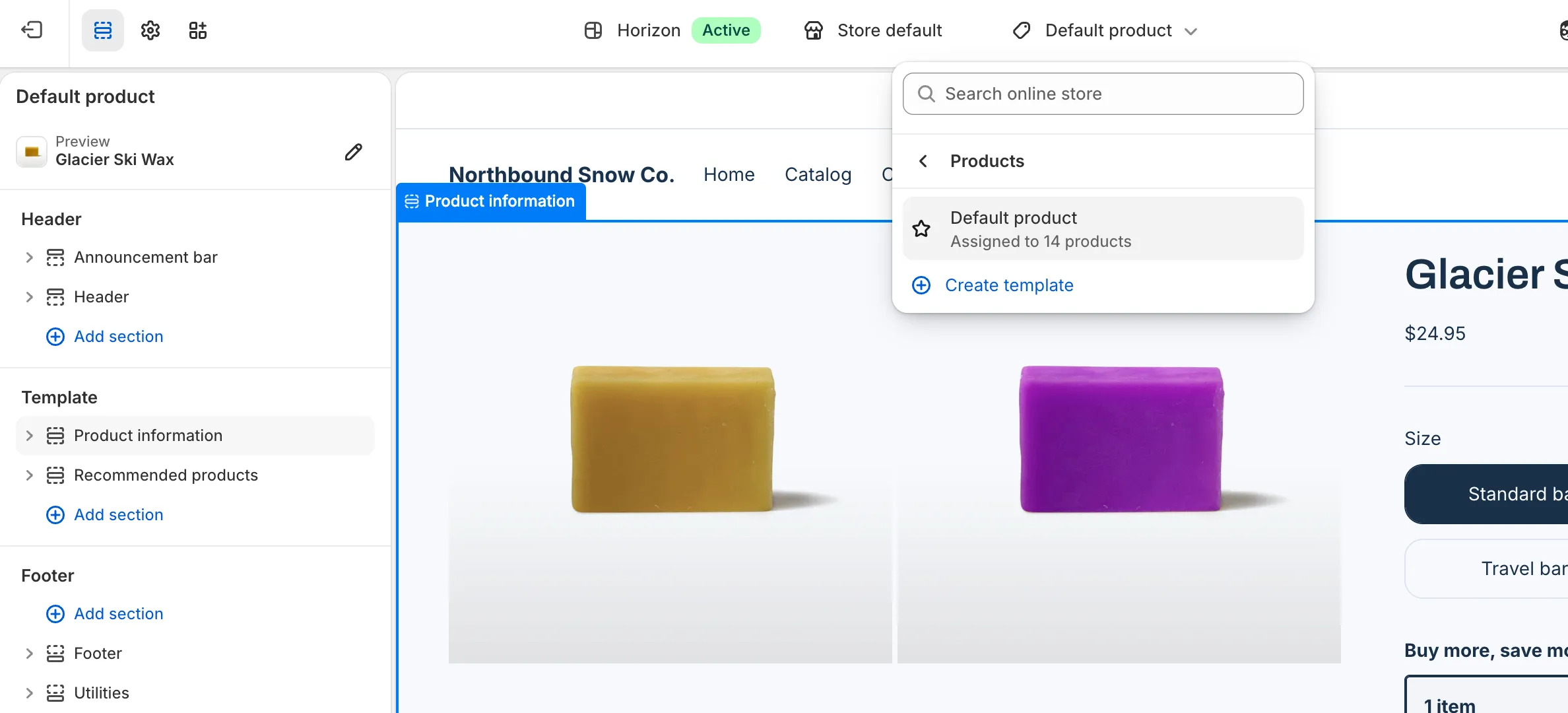
-
Click Add block, open Apps and pick AndOr Savings badge.
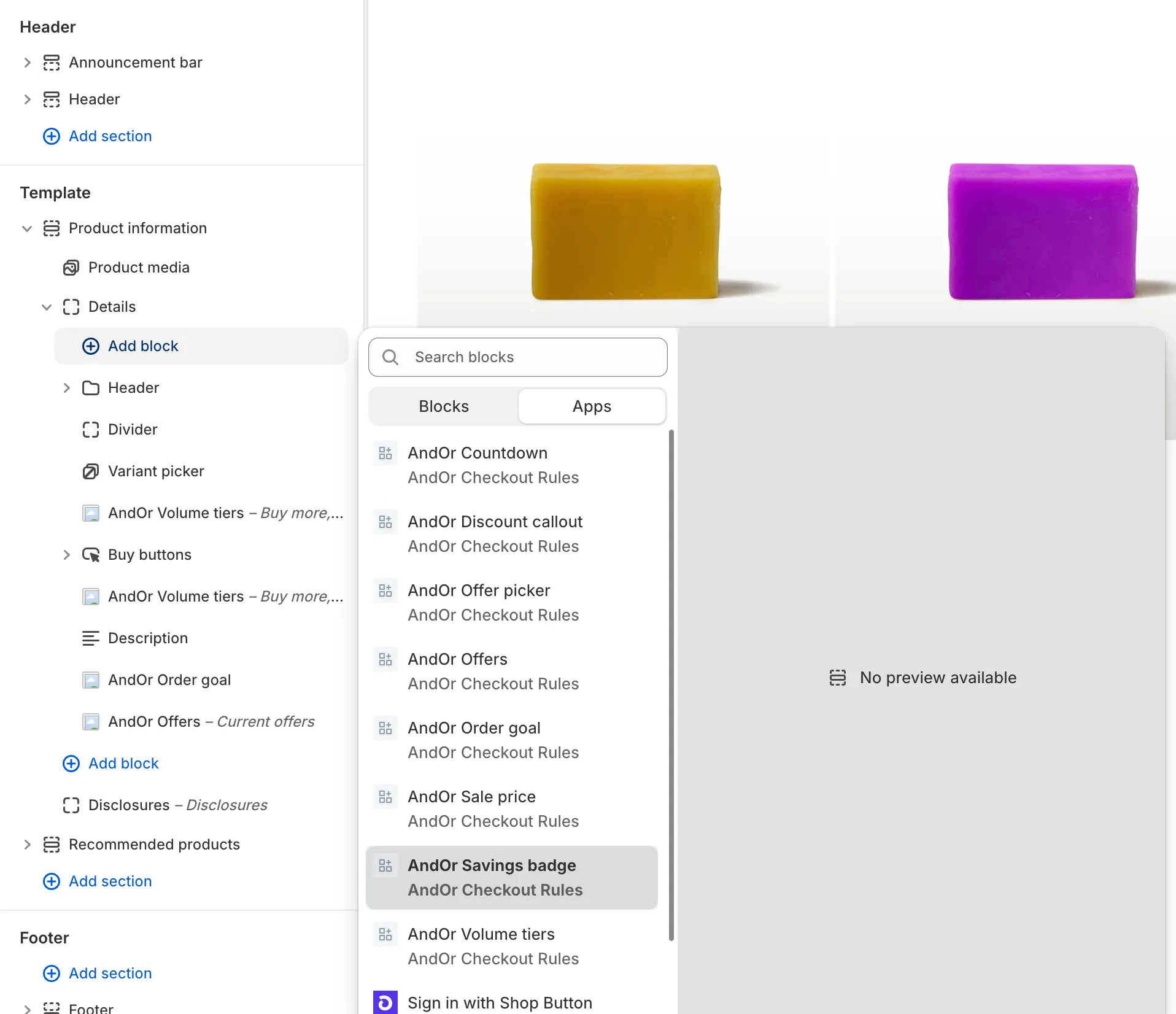
-
Drag the block near the price or the title, then click Save.
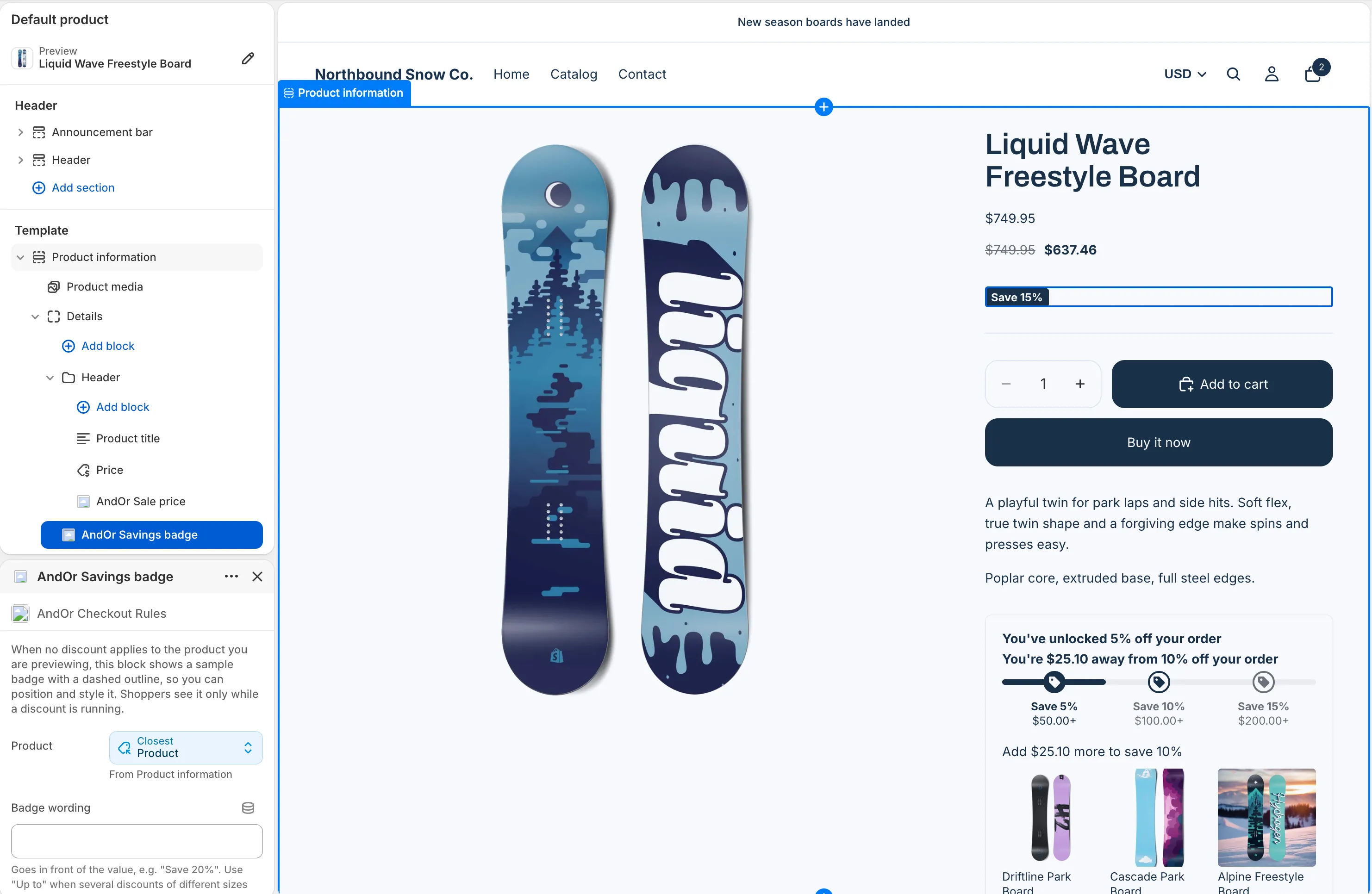
Tip In AndOr, Promotions > Storefront widgets > See all blocks has an Add to theme button that opens the editor with the block ready.
With no discount on the preview product, the editor shows a sample badge with a dashed outline. Shoppers only see the badge while a discount runs.
Or paste the tag
A developer can paste one line where the badge should go:
<andor-badge></andor-badge>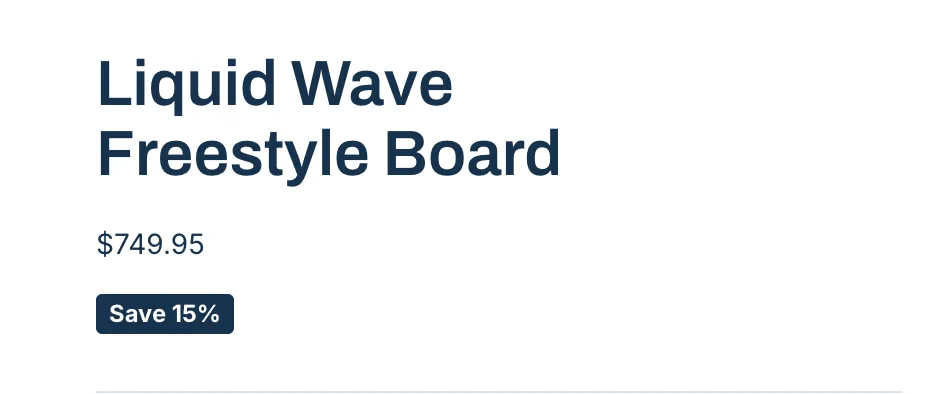
Note The tag needs the AndOr Discount Display app embed on. The embed fills the tag in, so with the embed off it shows nothing. See One-line tags.
For product cards on Dawn, use a product card recipe. On Horizon, add the block to the card instead.
Block settings
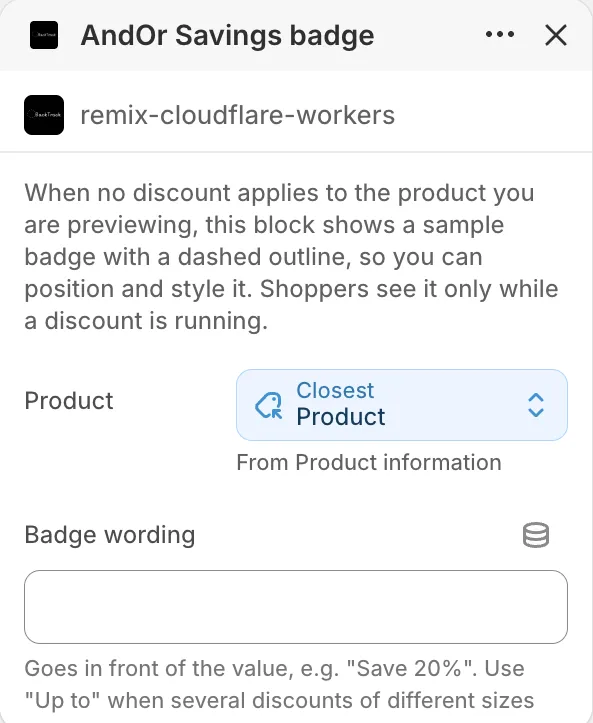
| Setting | What it does | Default |
|---|---|---|
| Product | The product to badge. Fills itself on a product page. | This page’s product |
| Badge wording | Goes before the value. “Up to” gives “Up to 20%”. | “Save” in the shopper’s language |
| Show badges for discounts with conditions | Also badges the product’s discounts that need a code or a minimum order. | On |
| Badge background | The fill. Used exactly as set, not your brand color. | #c0392b |
| Badge text | The text color. | #ffffff |
| Corner radius | 0 to 24 px. | 4 px |
| Text size | 70% to 200% of the text around it. | 85% |
| Space above, Space below | 0 to 64 px. | 0 px |
What it needs to appear
- Optional: the app embed. The block shows without it. The embed adds your shared look settings, text changes, the cart drawer parts and one-line tags.
- The AndOr Savings badge block is in your theme. See Add the block.
- A discount on the product itself is switched on under Promotions > Storefront widgets. Order discounts don’t count. For a discount with conditions, Show badges for discounts with conditions must be on in the block. It is on by default.
With no such discount, the block stays hidden.
Show it in more places (code)
To show it where your theme has no slot for the block, paste a line of code. See Savings badge: Code.
Limits
- When the shown discount ends, the badge hides. The next discount shows on the next page load.
- A code applied at checkout is not seen. Only a code in the cart switches the badge to “applied”.
- The badge follows variant switches when up to eight discounts apply to the product.
- Amounts in another currency show with the currency code, like “BDT 200”. They are not converted.
- It does not show on gift cards, because Shopify does not discount them.