 See it in action
 Product card recipes
On this page
- On Horizon: use the app blocks
- The recipes
- Copy them from the app
- Five things before you paste
- Recipe 1: percentage badge over the image
- Recipe 2: percentage badge next to the title
- If your theme names the card’s product differently
- Recipe 4: badge that hides when the sale ends
- The other recipes
- What card recipes do not do
Product card recipes are short pieces of Liquid you paste into your theme’s product card. Shopify gives apps no block slot inside a product card, so this is how a collection, search or home page card shows an AndOr badge or sale price.
Tip Card recipes need no JavaScript and no stylesheet. They work with the app embed off, and they are correct with scripting disabled.
On Horizon: use the app blocks
Do not paste card recipes on Horizon. Horizon builds its product cards
from blocks, so there is no snippets/card-product.liquid to paste
into. In the theme editor, add the AndOr Sale price or AndOr
Savings badge app block to the product card instead. See
Horizon.
The recipes
| # | Recipe | Lines | Reads |
|---|---|---|---|
| 1 | Percentage badge, over the image | 6 | best_percent |
| 2 | Percentage badge, next to the title | 6 | best_percent |
| 3 | Crossed-out original price | 10 | best_percent, price |
| 4 | Badge that hides when the sale ends | 9 | best_percent, end |
| 5 | Price with expiry, the complete one | 21 | both owners |
| 6 | Storewide sale banner | 7 | shop scalars only |
| 7 | “Use code X” chip | 12 | the discounts array |
| 8 | “Ends in Xh” urgency text | 9 | best_ends_at |
| 18 | Volume discount hint on a card | file + 2 | both arrays |
The numbers have gaps on purpose. Removed recipes keep their number, so “recipe 18” always means the same recipe.
Every recipe except 5 adds markup beside what your theme already renders. Recipe 5 replaces a price line and comes with a wrapper to do it.
Copy them from the app
-
In AndOr, open Storefront display and choose See all blocks.
The Storefront blocks page opens.
-
Open Product cards: pasted recipes, pick a recipe and copy it.
The copy has your store’s real metafield namespace filled in. The versions on this page say
app--<app-id>--andor_displayand render nothing until you swap in the real value. -
Open the theme code and find the file the recipe names.
In Shopify admin, go to Online Store, then Themes, then Edit code in the theme’s menu. On Dawn most recipes go in
snippets/card-product.liquid. -
Paste where the recipe says, then press Save.
-
Check a collection page. A discounted product shows the recipe. Products with no discount look exactly as before.
To undo, delete the lines you pasted and press Save. No app data is affected.
Five things before you paste
- Copy the namespace from the app. The real namespace has a numeric
app id in the middle and differs per store.
$app:andor_displayonly works inside AndOr’s own blocks, not in your theme code. - Never name a metafield key
size,firstorlast. Those are Liquid filters. When such a metafield is missing, Liquid applies the filter to the namespace and returns a count instead of nothing. None of AndOr’s keys use these names. - A missing metafield renders nothing, never “0% off”. The app
deletes a shortcut key when nothing qualifies.
| plus: 0turns a missingbest_percentinto0, and the> 0test is the whole check.best_ends_atis the other way round: missing means “does not end”, so it reads| default: 9999999999. - A printed percentage is floored, never rounded. A real 12.5%
discount must never show as 13%. Every recipe prints
{{ andor_percent | floor }}and keeps the full value for math. - Colors are literal on purpose. Each recipe hard-codes
#c0392bso it works with the app embed off. To follow the app’s color, swap the literal for the token, with the literal as fallback:
style="background:var(--andor-color-accent, #c0392b);
color:var(--andor-color-on-accent, #ffffff)"One more rule: keep the gift_card? guard. Shopify does not discount
gift cards, and the question mark matters.
Recipe 1: percentage badge over the image
Puts a “20% OFF” chip in the corner of the card image. Paste it inside
the card’s image wrapper in snippets/card-product.liquid, after all
the images, just before the wrapper’s closing tag.
{% comment %} AndOr Discount Display: badge over the image. {% endcomment %}
{% assign andor_item = card_product | default: product %}
{% assign andor_percent = andor_item.metafields.app--<app-id>--andor_display.best_percent.value | plus: 0 %}
{% if andor_percent > 0 and andor_item.gift_card? != true %}
  <span class="andor-badge" style="position:absolute;top:0.5rem;left:0.5rem;bottom:auto;right:auto;width:auto;height:auto;z-index:2;background:#c0392b;color:#ffffff;border-radius:0.25em;padding:0.15em 0.55em;font-size:0.85em;font-weight:600">{{ andor_percent | floor }}% OFF</span>
{% endif %}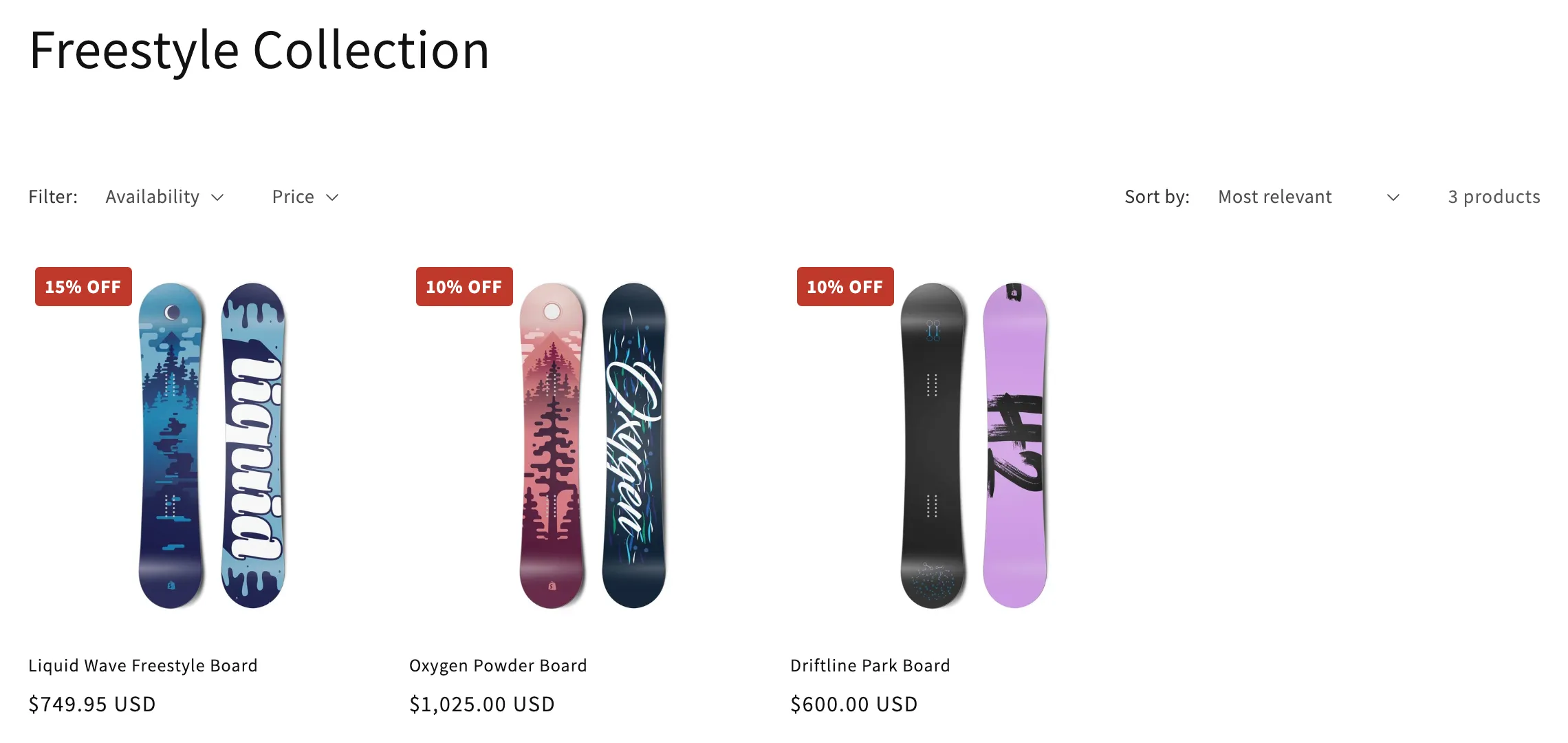
Three ways it can look broken, and the fix for each:
- The chip fills the whole card (size). Dawn stretches every direct
child of the image wrapper. The recipe’s inline
width:auto;height:autoand the twoautooffsets undo that. Keep all four if you restyle it. - The image vanishes on hover (order). A card has two images and
Dawn swaps them with an
img + imgrule. Pasting between them breaks it. Paste after every<img>. - The chip flies to the corner of the page (place). The wrapper is
not positioned. Add
position:relativeto the element you pasted into:
.card__media { position: relative; }The chip lands top-left. The app offers the other three corners beside
the recipe. Each corner sets two offsets and sets the opposite two to
auto:
| Corner | What the style attribute says |
|---|---|
| Top left | top:0.5rem;left:0.5rem;bottom:auto;right:auto |
| Top right | top:0.5rem;right:0.5rem;bottom:auto;left:auto |
| Bottom left | bottom:0.5rem;left:0.5rem;top:auto;right:auto |
| Bottom right | bottom:0.5rem;right:0.5rem;top:auto;left:auto |
Recipe 2: percentage badge next to the title
The same number, inline, with no positioning. Paste it right after the
product title link in snippets/card-product.liquid. It also works on a
product page in sections/main-product.liquid.
{% comment %} AndOr Discount Display: badge next to the title. {% endcomment %}
{% assign andor_item = card_product | default: product %}
{% assign andor_percent = andor_item.metafields.app--<app-id>--andor_display.best_percent.value | plus: 0 %}
{% if andor_percent > 0 and andor_item.gift_card? != true %}
  <span class="andor-badge" style="display:inline-block;background:#c0392b;color:#ffffff;border-radius:0.25em;padding:0.15em 0.55em;font-size:0.85em;font-weight:600">Save {{ andor_percent | floor }}%</span>
{% endif %}If your theme names the card’s product differently
card_product | default: product covers Dawn, Studio and themes built
from them. card_product must come first. On a product page, product
is in scope everywhere, so a related-products card would show the
page’s discount.
Other themes loop the card’s product into their own name, such as
item. Find it in the section’s {% render %} call, then change the
andor_item line:
{% assign andor_item = item | default: product %}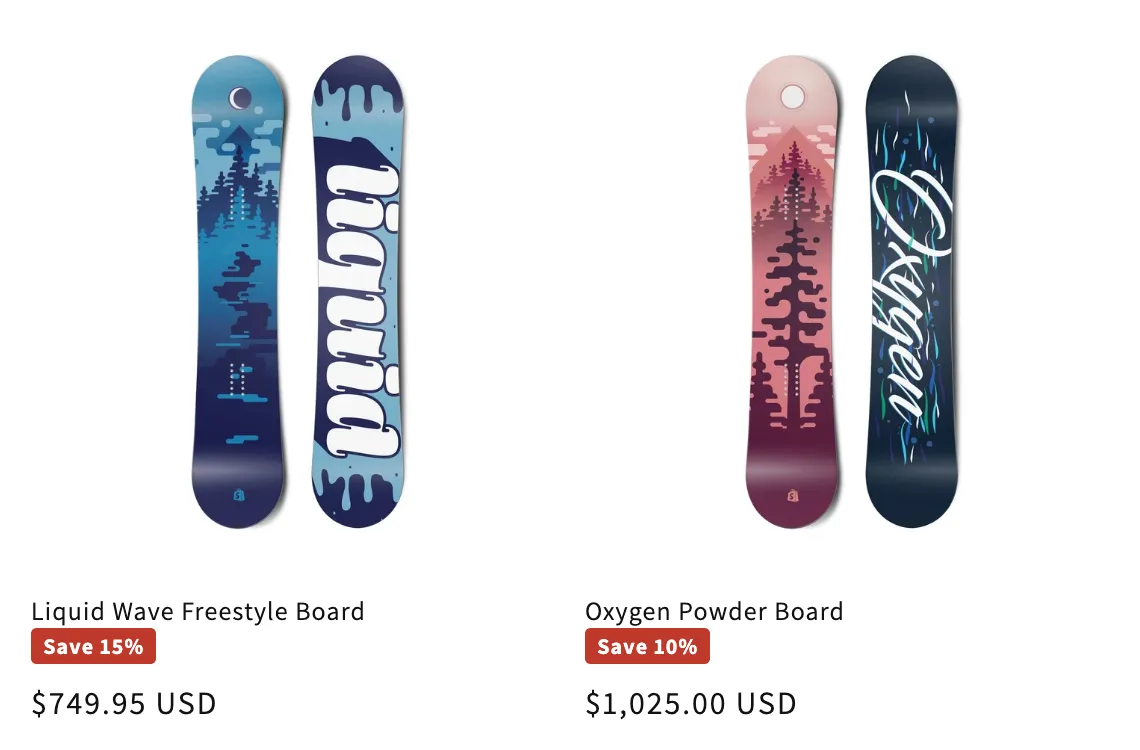
Two symptoms point to this line:
- On a collection page, nothing renders on any card.
- On a product page, every related-products card shows the page product’s discount.
Recipe 4: badge that hides when the sale ends
Recipe 2 plus an end-date check. Paste it anywhere recipe 2 goes.
{% comment %} AndOr Discount Display: badge that expires. {% endcomment %}
{% assign andor_item = card_product | default: product %}
{% assign andor_percent = andor_item.metafields.app--<app-id>--andor_display.best_percent.value | plus: 0 %}
{% comment %} The key is ABSENT when the sale does not end, so the default has to be far future. {% endcomment %}
{% assign andor_ends = andor_item.metafields.app--<app-id>--andor_display.best_ends_at.value | default: 9999999999 %}
{% assign andor_now = 'now' | date: '%s' | plus: 0 %}
{% if andor_percent > 0 and andor_ends > andor_now and andor_item.gift_card? != true %}
  <span class="andor-badge" style="display:inline-block;background:#c0392b;color:#ffffff;border-radius:0.25em;padding:0.15em 0.55em;font-size:0.85em;font-weight:600">Save {{ andor_percent | floor }}%</span>
{% endif %}
The check runs when the page is built. A sale that ends while a shopper looks at a served page stays on screen until they navigate.
The other recipes
Copy these from the app. Each one names its file and spot.
- Recipe 3, crossed-out original price. The struck original beside the discounted price. It adds a price, so delete your theme’s price line or use recipe 5.
- Recipe 5, price with expiry. Saved as
snippets/andor-card-price.liquidand rendered inside a{% capture %}wrapper. Either the sale price or your theme’s price renders, never both. It reads the product and the shop, so storewide sales count too. - Recipe 6, storewide sale banner. One line across the top of every
page, in
layout/theme.liquidjust after<body>. It reads the shop metafields only, so it stays blank unless a storewide sale is live. - Recipe 7, “Use code X” chip. Under the price on a product page. It
reads the
discountsarray and checks both start and end dates. - Recipe 8, “Ends in Xh” urgency text. Shows “Ends in under Xh” for the last 48 hours. It does not tick. For a live clock, use the AndOr Countdown block.
- Recipe 18, volume discount hint. Saved as
snippets/andor-card-tiers.liquid, then rendered twice in the card: an “UP TO 30% OFF” chip over the image and an info button beside the title that lists each step’s price.
What card recipes do not do
- No variant-scoped deals. A deal for some variants only is left out of the shortcut numbers. A card has no variant picker, so it says less rather than promising a price on every variant.
- No fixed-amount deals by default.
best_amount_eachis in shop currency and the recipes have no script to convert it. - No translation. “Save”, “OFF”, “Use code” and “Ends in under” are literals. Edit them in your copy.
- Nothing follows a variant picker. For that, use the app blocks or the one-line tags.