 See it in action
 App embed and blocks
AndOr ships one app embed and nine app blocks in a single theme app extension. The embed runs on every page. Each block is a widget the merchant places in a section in the theme editor.
Note App blocks need an Online Store 2.0 theme with JSON templates. The section’s schema must also accept
@appblocks. The app embed, the one-line tags and the product card recipes work on any theme. On vintage themes they are all you get, with no cart drawer parts. See Vintage themes.
The app embed
AndOr Discount Display has the target head, so it renders in the
<head> of every page. Turn it on in the theme editor under App
embeds.
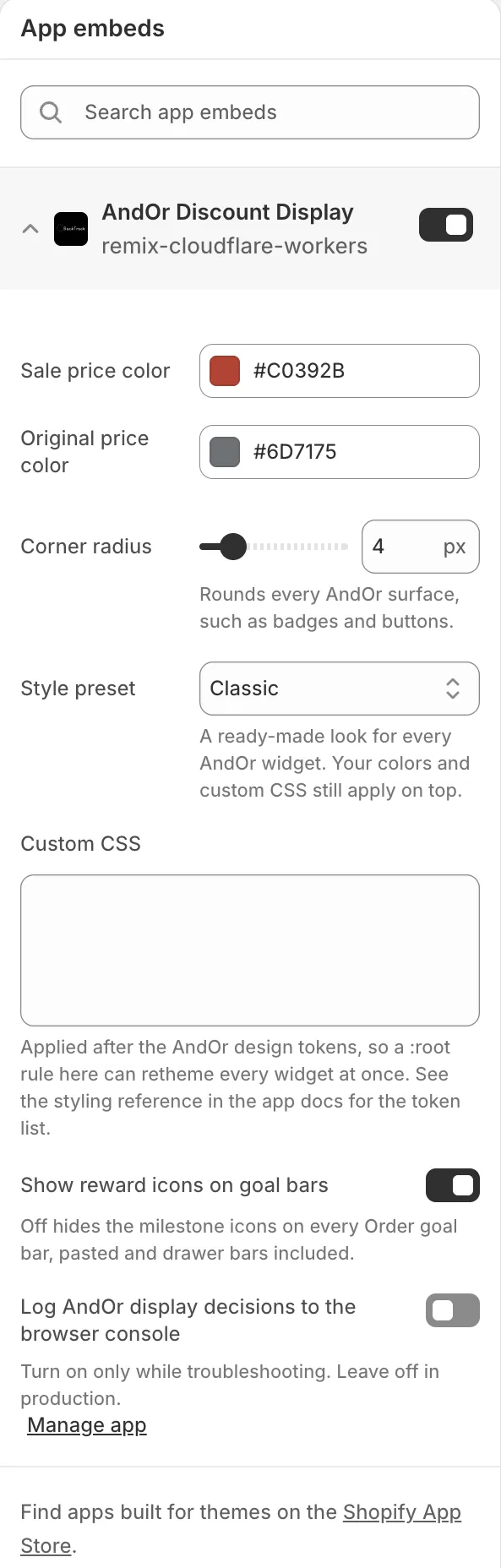
Note Each app block loads its own scripts, styles and data, so blocks still show with the embed off. Without the embed, these don’t work: one-line tags, the cart drawer rows (claim rows, the gift slot, the gift chooser, and the goal bar while the cart is empty), the shared look settings and Custom CSS, text overrides and translations, and the
andor:widget:*andandor:display:changeDOM events. Tell merchants to always turn it on.
What it does:
- Prints the global token layer (
--andor-*custom properties) into:root. See Styling tokens. - Loads its script with
defer. Other scripts load only on pages that need them. See Performance. - Stages hidden
<template>carriers for the seven one-line tags. A tag copies its carrier the moment the browser reads it. See One-line tags. - Puts the upsell claim rows and the gift slot in the cart drawer, with no tag needed.
Embed settings
Sale price color
The color of sale amounts and the main accent color. Default:
#c0392b. While it stays at the default, the app brand color is used
instead. See Brand color.
Original price color
The color of struck original prices. Default: #6d7175.
Corner radius
Rounds every AndOr surface, such as badges and buttons. Range 0 to 24 px. Default: 4.
Style preset
A ready-made look for every AndOr widget. Your colors and custom CSS still apply on top.
Options: Classic, Soft, Bold, Minimal, Dark. Default: Classic.
See Style presets.
Custom CSS
Printed in a second <style> element after the token block. A :root
rule here overrides any token without specificity games.
Show reward icons on goal bars
Off hides the milestone icons on every Order goal bar, pasted and drawer bars included. Default: on.
Log AndOr display decisions to the browser console
Turn on only while troubleshooting. Default: off.
Note Theme editor labels and settings are in English only. The words shoppers see follow the store’s language.
The app blocks
All blocks have the target section. “Any” means the block schema sets
no enabled_on, so the theme editor offers it on every template.
| Block (theme editor name) | Handle | Templates |
|---|---|---|
| AndOr Sale price | display-price |
any |
| AndOr Savings badge | display-badge |
any |
| AndOr Countdown | display-countdown |
product |
| AndOr Offers | display-offers |
any |
| AndOr Volume tiers | display-tiers |
product |
| AndOr Offer picker | display-bundle |
product, cart |
| AndOr Order goal | display-goal |
product, cart |
| AndOr Collection banner | display-banner |
collection |
| AndOr Discount callout | display-callout |
any |
The price and badge blocks still need a product: the page’s, a card’s, or one picked in the block’s Product setting.
The AndOr Offer picker draws different things per page:
- On a product page: the “Frequently bought together” card for a Bundle offer, or a banner for a Buy X Get Y or Gift offer.
- On the cart page: the Buy X Get Y claim row and the free gift slot.
The AndOr Order goal block has a setting Also show in the cart drawer. It copies the bar to the top of the cart drawer when it opens. It needs Horizon 4.0 or Dawn 15.5 or later.
Every block’s settings are listed on its widget page. For example, see Goal bar app block.
Block ids
Each block’s host element carries data-andor-widget-id with the
block’s id (block.id). A one-line tag carries the value pasted
instead.
- When a merchant changes a block setting from its default, the block
prints one scoped rule,
[data-andor-widget-id="<block id>"] { … }. Two blocks of the same kind in one section cannot restyle each other. - A block left on its defaults prints no
<style>element at all. - Events report the id as
widgetId, so your code can tell two blocks apart. See Events.
The offers list is the one exception: its rows carry no id. Find the block from the row:
document.addEventListener("andor:display:change", (event) => {
  if (event.detail.resource.widgetType !== "offer") return;
  const block = event.target.closest("andor-offers");
  console.log("row in block:", block?.dataset.andorWidgetId);
});Theme editor links from the app
The app’s setup steps open the theme editor with a block or the embed
already staged. They use Shopify’s documented deep link parameters.
themes/current is the published theme.
To stage a block, the app opens:
https://<shop>.myshopify.com/admin/themes/current/editor?template=<template>&addAppBlockId=<api_key>/<handle>&target=mainSectionTo switch on the embed, the app opens:
https://<shop>.myshopify.com/admin/themes/current/editor?context=apps&template=product&activateAppId=<api_key>/display-embed<handle>is a block handle from the table above. The embed’s handle isdisplay-embed.- A block link uses the
producttemplate by default,cartfor the Offer picker on the cart page, andcollectionfor the Collection banner. The embed link always opens theproducttemplate. target=mainSectionputs the block in the template’s main section.
Caution A deep link cannot choose a position inside the section. The block is added at the end, so on a stock product page it lands under the Buy it now button. Drag it where you want it (for example under the price), then press Save.