 See it in action
 Reorder payment methods
On this page
“Rearrange the display order of payment methods at checkout.” For example, move Cash on Delivery to the last position, or show PayPal first for international shoppers.
Before you start
- Note the payment method names as shoppers see them at checkout.
- Some logo methods can’t be moved, for example Shop Pay. You can still move the other methods around them. See Limits.
Set it up
-
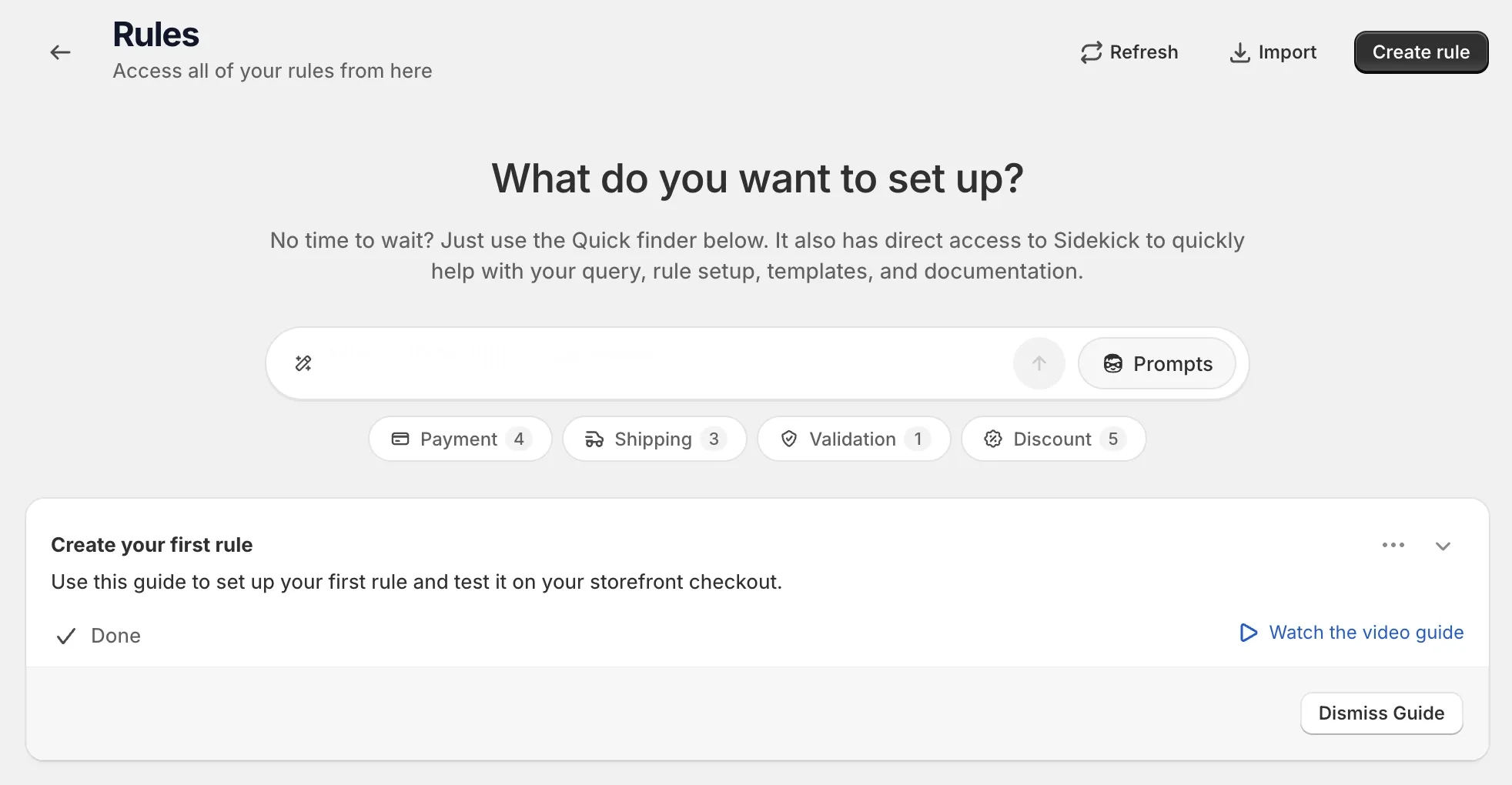
Open Rules and click Create rule.
-
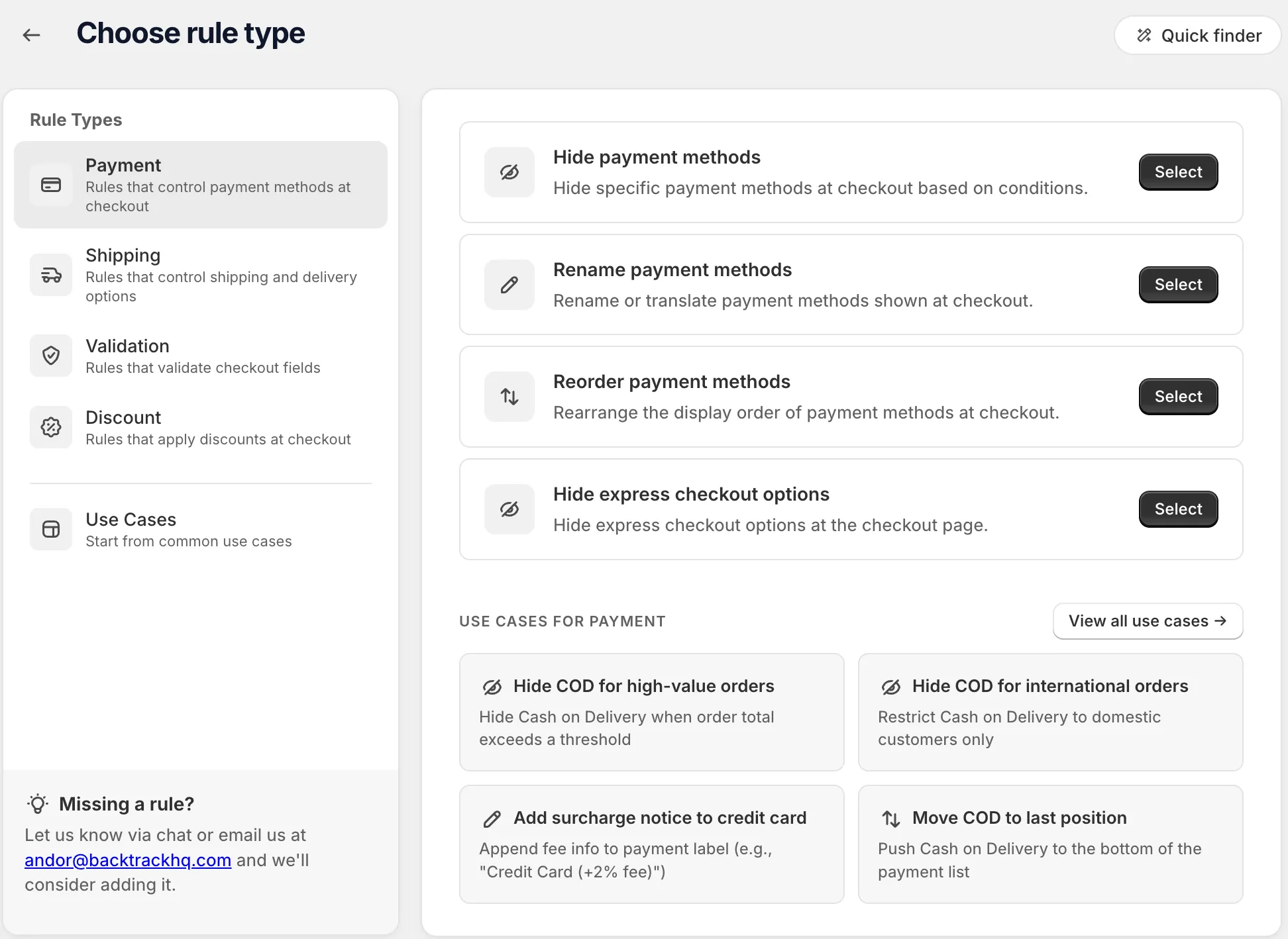
Under Payment, find Reorder payment methods and click Select.
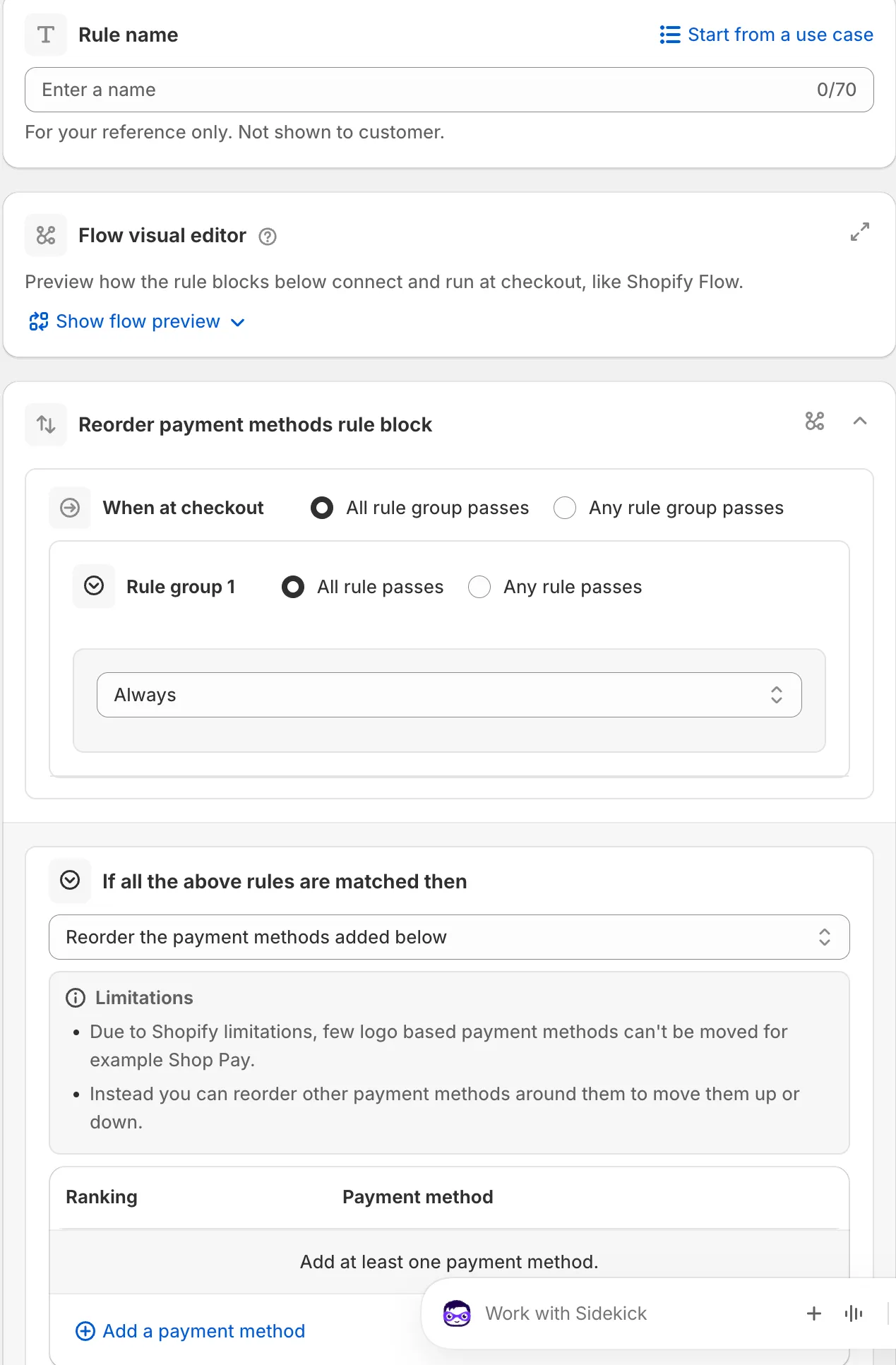
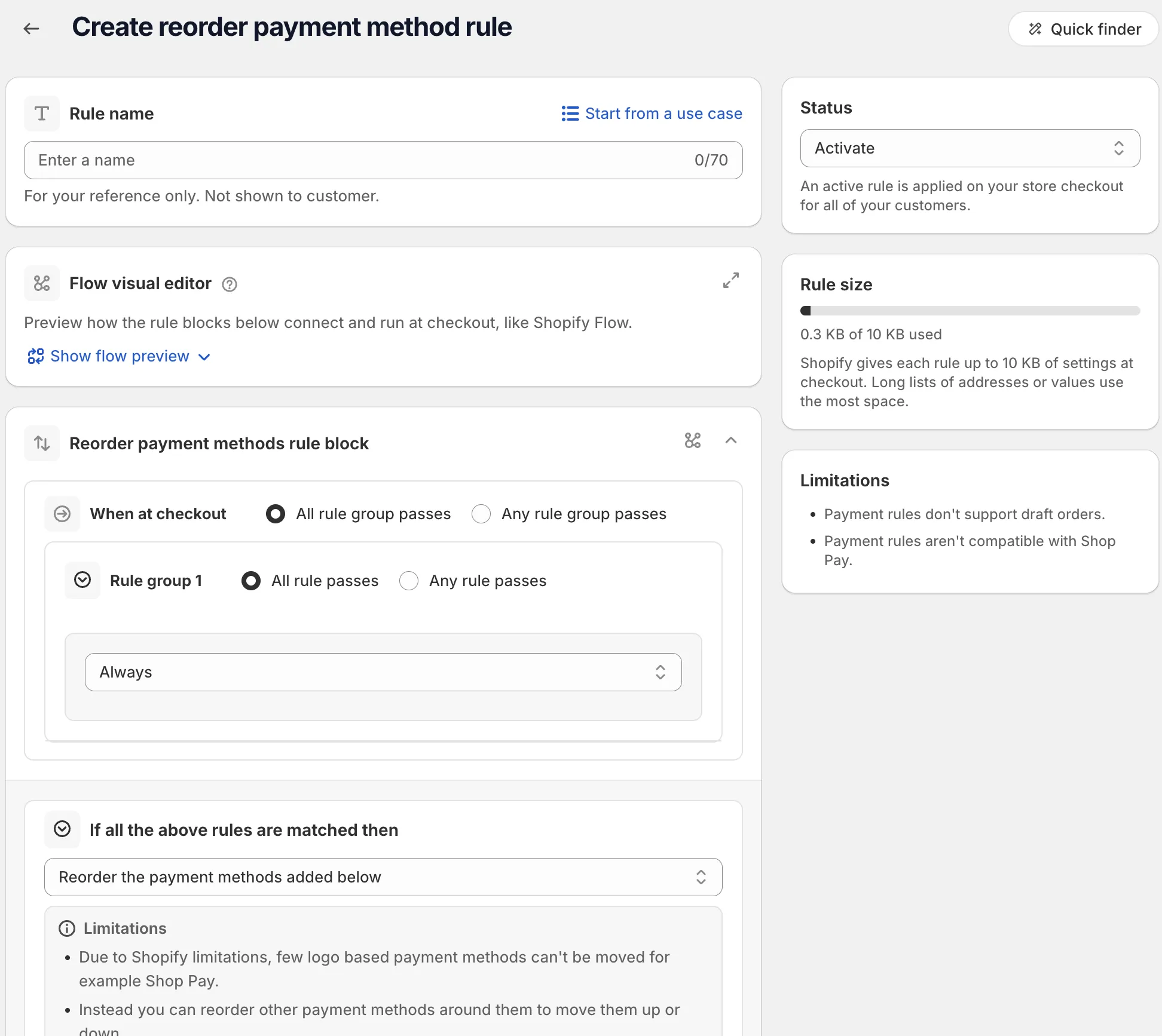
On the rule page, name the rule, or click Start from a use case to fill in the whole form. The name is for your reference only. Shoppers don’t see it. See Start from a use case.
-
Add your conditions under When at checkout.
To reorder for every checkout, use the Always condition. Reorder rules have no Rule sets card. See Conditions, groups and blocks.
-
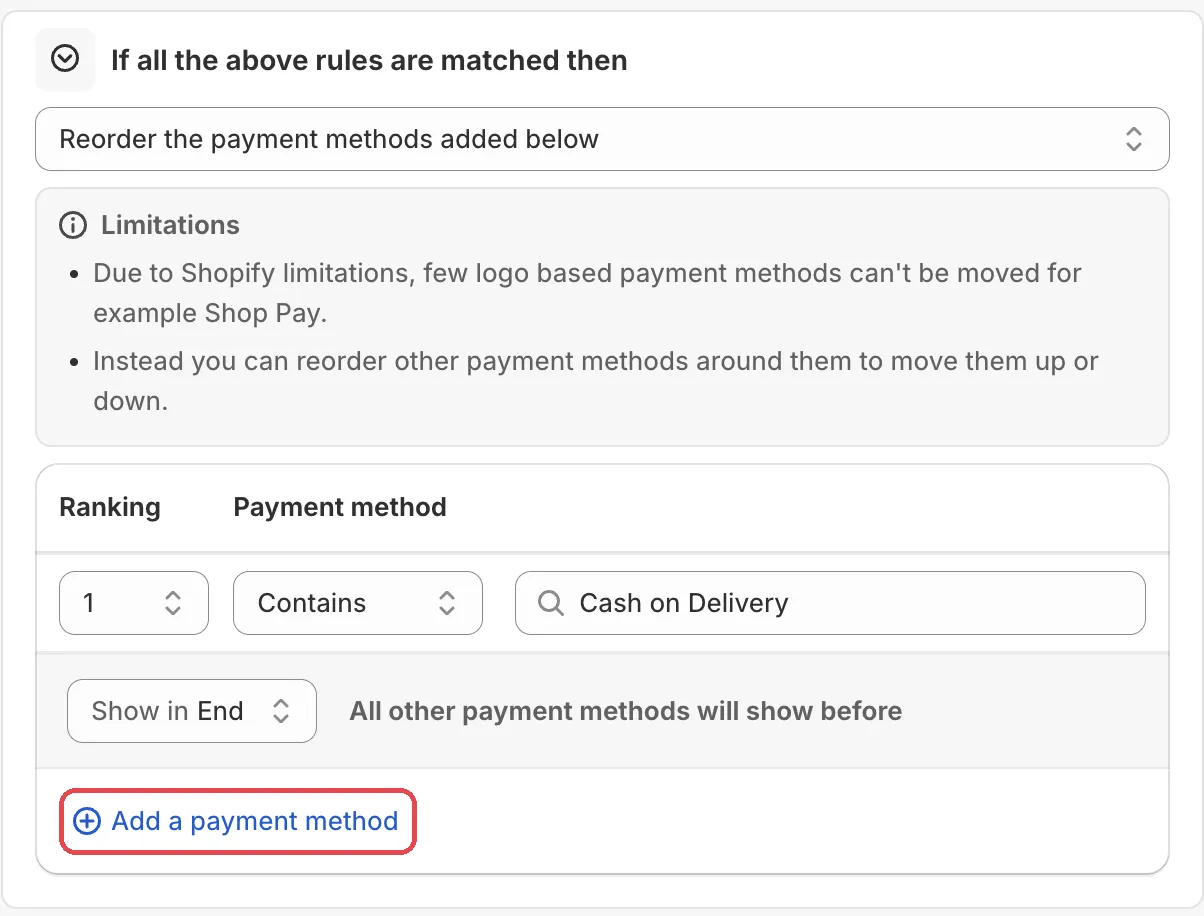
Add the payment methods in the order you want.
The action is Reorder the payment methods added below. Click Add a payment method and type each name. Each row has a Ranking. Above the list, Show in sets where your list goes: Start (the line reads “All other payment methods will show after”) or End (“All other payment methods will show before”).
-
Save it as a draft, test it, then activate it.
In the Status card, choose Draft and save. Then go to checkout on your store and enter the test email from the rule’s Status card. Only this email sees a draft rule. Check the order of the payment methods.
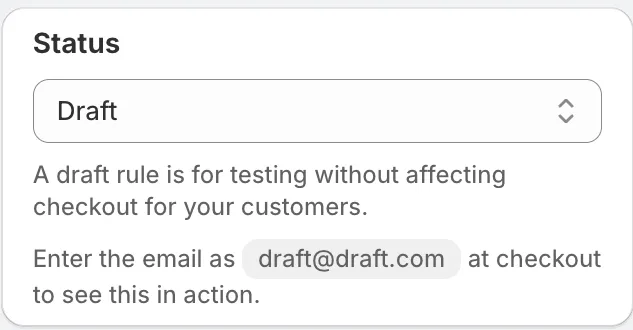
When it works, choose Activate in the Status card and save.
Actions
Reorder the payment methods added below
The only action for this rule type. It puts the methods you list in the order of their Ranking.
Settings
Show in
Decides if your list goes at the start or the end of the payment methods. The methods you did not list fill the rest.
Options: Start, End.
For example, to move Cash on Delivery to the bottom, add only Cash on Delivery and choose End.
Payment method name
Each row has a match type and a name.
Options: Is, Contains, Not contains. Default: Contains.
Ranking
The position of the method in your list. Lower numbers show first.
Status
Options: Draft, Activate, Deactivate.
Examples
Open Start from a use case on the rule page and pick one of these:
- Move COD to last position: pushes Cash on Delivery to the bottom of the payment list.
- Prioritize Shopify Payments: moves Shopify Payments or credit card to the first position.
- Move PayPal to top for international: shows PayPal first for shoppers outside your country.
Limits
The Limitations card on the rule page lists:
- “Payment rules don’t support draft orders.”
- “Payment rules aren’t compatible with Shop Pay.”
Under the action, the rule block also says: “Due to Shopify limitations, few logo based payment methods can’t be moved for example Shop Pay.” Reorder the other methods around them instead. Express and wallet methods can be hidden, but not reordered. See Limits.