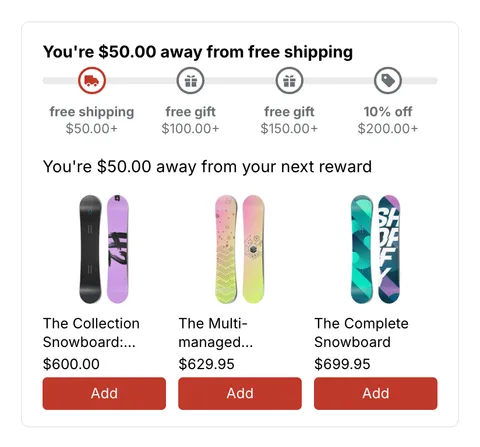
 See it in action
After purchase offers
On this page
After purchase offers show on the Thank you page, and some on the Order status page, once the buyer has paid. They work on every Shopify plan, and on every AndOr plan, Free included.
The four after purchase offers
| Offer | What the buyer sees |
|---|---|
| Next-order offer | A code for their next order, on the Thank you and Order status pages. |
| Survey | One question after they pay, like how they heard about you. |
| Announcement bar | A line at the top of the Thank you page that points to the next-order offer. |
| Subscription link | A button to manage the subscription, for orders that have one. |
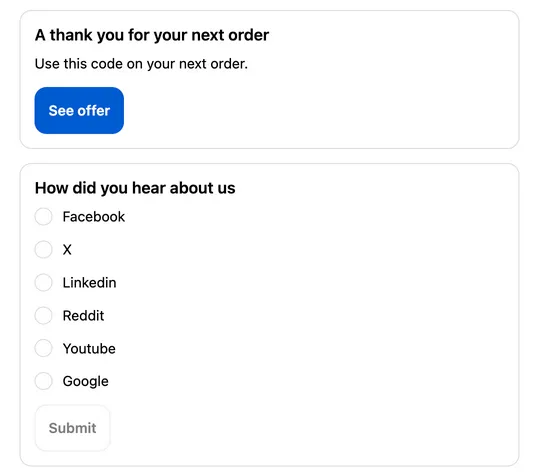
See offer opens the code with a Copy code button:
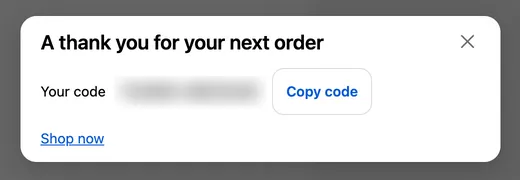
They use your Shopify checkout branding. To change their look, click Edit checkout branding on the After purchase tab.
Create an after purchase offer
-
Open Promotions, click Create promotion, then open the After purchase tab.
-
Click Choose on the offer you want, and fill in its settings.
-
Add the AndOr thank you offer block in Shopify’s checkout editor.
In your Shopify admin, open Settings > Checkout and click Customize. On the Thank you page, add the AndOr thank you offer block. It shows the next-order offer, the survey and the subscription link. Then choose Order status in the same menu, add the block there too, and save. The Order status page needs new customer accounts.
For the Announcement bar, add the AndOr announcement in the announcement bar area at the top of the Thank you page. See offer opens the whole offer in a window.
-
Test it with a test order.
Settings for each offer
Next-order offer
- Show the offer after checkout.
- Offer for the next order: Next-order code, Buy again, Exclusive product offer, Free gift with next order or Next order goal.
- Code: Use a code I already have, or Create a code for me with a Percent off.
- Heading, Message and Recommended products.
- Display: show it on the page, or as a button that opens it. You can add a short note under the code.
Survey
- Ask buyers one question, and the Question, for example “How did you hear about us?”
- 2 to 6 choices. Buyers pick one. There’s no free text.
Announcement bar
- Show a line at the top of the Thank you page, and the Line.
Type
{code}to show the buyer’s next-order code.
Subscription link
- Show a link to manage the subscription, and the Link text.
- Subscription portal URL (optional): leave it empty to open the customer account.
Post-purchase page (needs Shopify approval)
The Post-purchase page shows one product at a percent off, right after payment and before the Thank you page. Pay now adds it to the order the buyer just paid for, charged to the same payment method. There’s no card to enter again and no new order. It works on every Shopify plan.
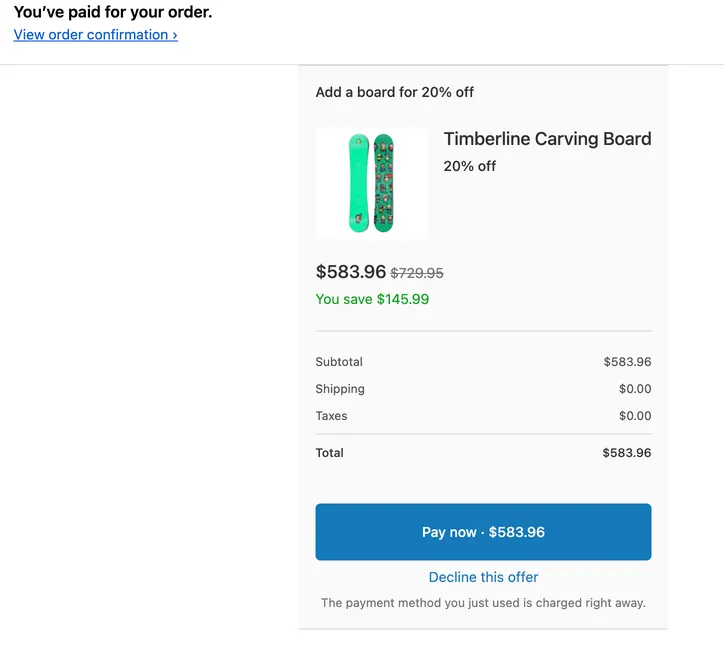
Shopify has to approve the app for post-purchase pages first. The Post-purchase page tile shows on the After purchase tab once that’s done.
Plans and limits
- After purchase offers come with every plan, Free included.
- They don’t count toward the number of promotions your plan allows.
- They keep showing even if your store’s other offers are paused at your order limit. See Offers and widgets paused.
- Added revenue in Analytics doesn’t include the next-order offer.
See also Checkout offers.