 See it in action
Checkout offers
On this page
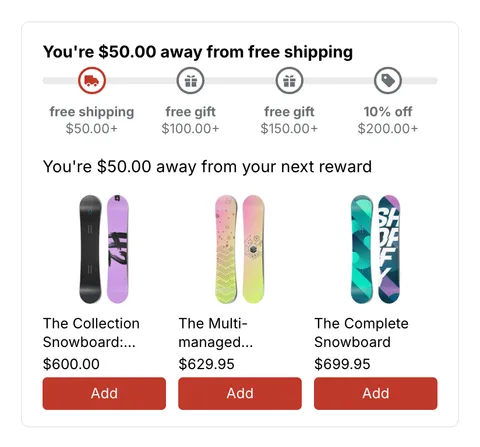
Checkout offers show inside Shopify checkout, while the buyer pays. They add one more product without sending the buyer back to the cart.
Note Checkout offers need Shopify Plus. Development stores can test them. On other plans the cards in the gallery are greyed out and say “Needs Shopify Plus”.
The five checkout offers
| Offer | What the buyer sees |
|---|---|
| Checkbox add-on | A box buyers tick to add one product, like shipping protection. |
| Product at % off | One product at a % off, added with one tap. |
| Bought together | 2 to 4 products that go with the cart, each with Add. |
| Subscribe and save | Turns a product into a subscription at the plan’s price. |
| Goal bar | How much more to spend for free shipping or a reward, with products that fill the gap. |
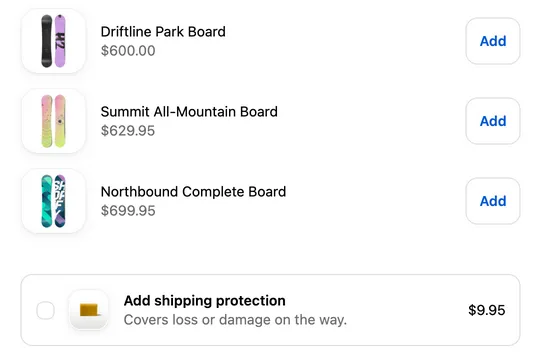
Checkout offers use your Shopify checkout branding, not your AndOr brand color. To change their look, click Edit checkout branding on the Checkout tab.
Create a checkout offer
-
Open Promotions, click Create promotion, then open the Checkout tab.
The tab sits under Where it shows, next to Storefront and After purchase.
-
Click Choose on the offer you want, and fill in its settings.
-
Add the AndOr checkout offers block in Shopify’s checkout editor.
In your Shopify admin, open Settings > Checkout and click Customize. Add the AndOr checkout offers block where you want offers to show, for example after the cart lines, then save.
-
Test it before buyers see it.
Go through checkout on your store and check that the offer shows and adds the product.
Settings every checkout offer has
- Where it shows: Storefront only, Checkout only, or Storefront + Checkout.
- Checkout block group (optional): groups offers that share one block.
- Who sees this offer: customer tags, Countries (only in, or every country except), and Cart total at least or at most.
- Active, with Start (optional) and End (optional).
Checkbox add-on, Product at % off and Bought together also have Show review stars, a Style (Card, Minimal or Highlight) and a Badge, a short tag like “Recommended”.
Settings for each offer
Checkbox add-on
- Add-on product: the product the box adds.
- Start from: Shipping protection, Gift wrap or Rush processing. Set a Price, and Create the product for me makes the product in Shopify.
- Picture, Text next to the box and Description. The price shows next to the text. The box starts unticked.
Product at % off
- Product to offer: you can untick variants you don’t want to offer. The offer hides when the product is already in the cart.
- Percent off: 1 to 90.
- Heading and Discount label.
Bought together
- Where the products come from: Shopify recommendations for the cart, or Products I choose.
- Most products shown: 2 to 4.
- Cart items to base it on: 1 or 2.
- Show an Add all button.
- Percent off (optional): only with Products I choose.
- Heading and Discount label.
Subscribe and save
Needs a subscription app that adds selling plans to the product.
Subscribe and save also works on the product page, on every Shopify plan. Choose it on the Storefront tab. The AndOr Discount Display app embed shows it, so no theme block is needed. With Where it shows, the same offer can show in checkout too, on Shopify Plus.
- The product and its Variant.
- Delivery frequencies, and which one is Selected at first.
- Layout: Compact, Cards or Choices.
- Heading and Benefits line.
Goal bar
Pick the order goal discount first. Then set the Message, with values you can insert like the amount left, and the Products to suggest.
A/B test a checkout offer
Try a second version of an offer and see which one earns more. You can test a Checkbox add-on, Product at % off, Bought together or Subscribe and save offer. The goal bar can’t be tested, because it’s tied to a discount.
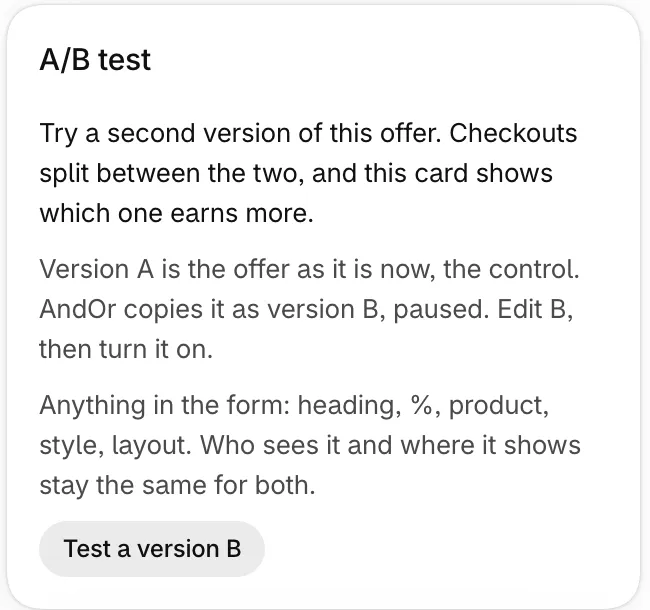
- Open a saved checkout offer. The A/B test card sits under Performance.
- Click Test a version B. Version A is the offer as it is now. AndOr copies it as version B, paused.
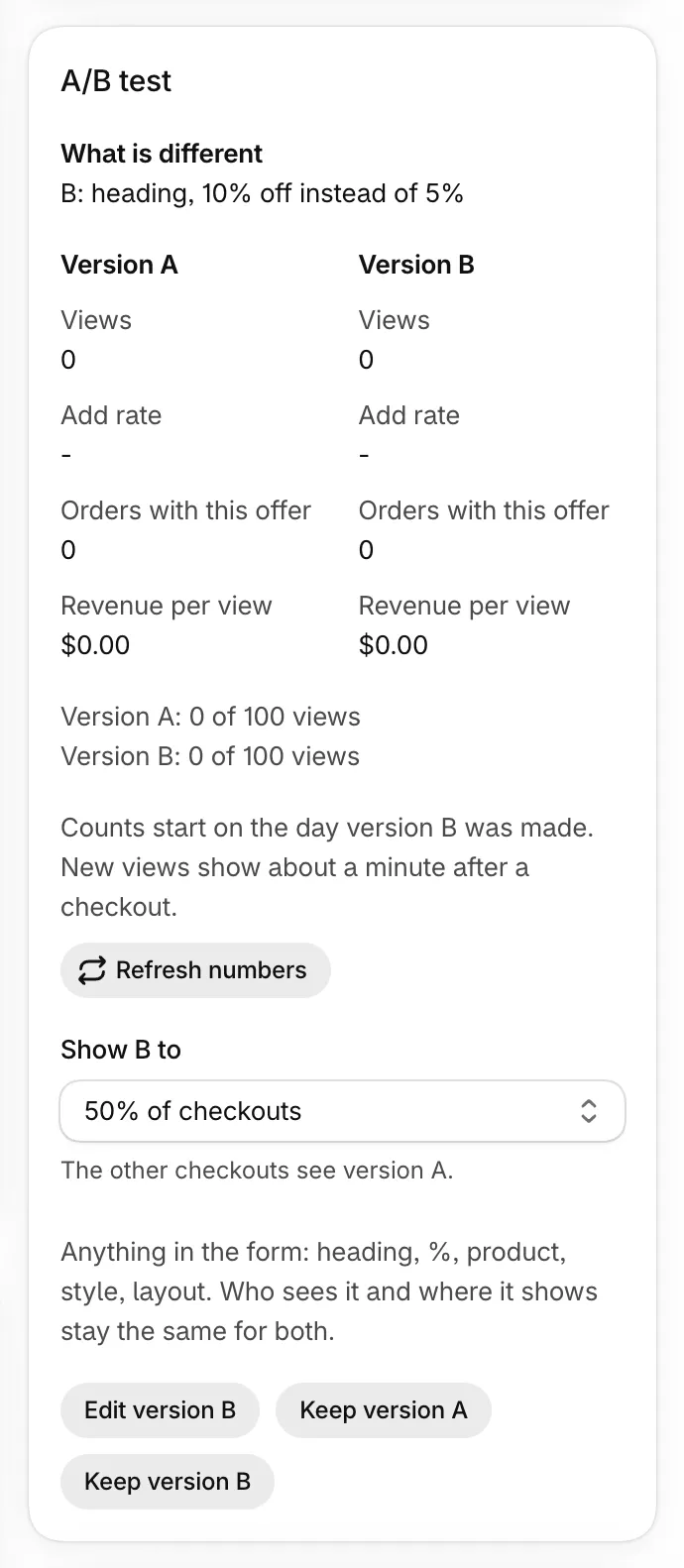
- Edit version B. Change anything in the form: heading, %, product, style or layout. Who sees it and where it shows stay the same for both. The card lists What is different.
- Pick Show B to: 10%, 25% or 50% of checkouts. The other checkouts see version A.
- Turn on version B. The test starts.
How checkouts are split
- Each checkout gets one version, and keeps it when the buyer reloads the page.
- A new checkout can land on the other version, even for the same buyer.
- If version A is paused, every checkout sees version B. If version B is paused, every checkout sees version A.
- Subscribe and save also shows on the product page. The test runs in checkout only.
Read the results
Each version needs 100 views first. Until then the card shows how far along each one is. Then it compares Revenue per view. With no revenue yet, it compares adds per view. The card shows which version earns more per view so far, or “Both versions do the same so far.”
It’s a plain comparison of the numbers so far. Give the test time before you pick. Counts start on the day you made version B.
End the test
- Keep version A: the test ends and version B is removed. The offer stays as it is.
- Keep version B: version B’s settings replace version A’s. The offer keeps its links, priority, schedule and history. Version B is removed.
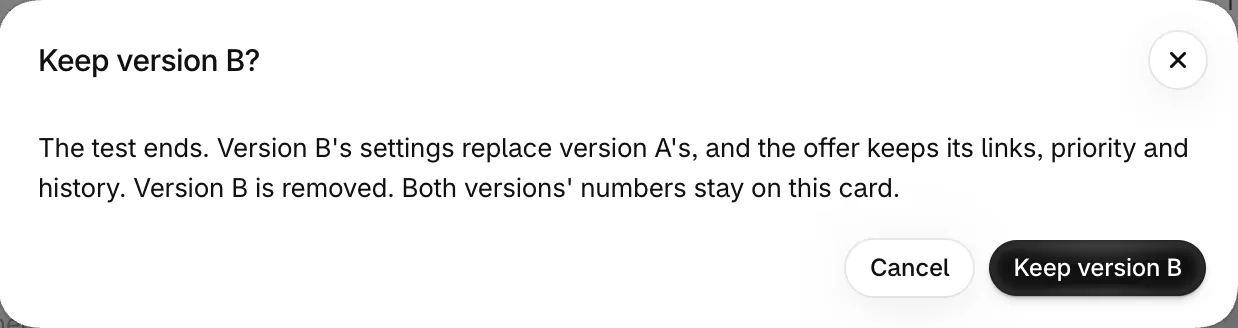
Both versions’ numbers stay on the card under Ended tests.
Plans and limits
- Checkout offers come with every AndOr plan. The only need is Shopify Plus, or a development store.
- They don’t count toward the number of promotions your plan allows.
- A/B tests come with every AndOr plan too.
- If your store uses Promotions and reaches 110% of its plan’s orders, checkout offers pause with storefront widgets and upsell offers. See Offers and widgets paused.
- Analytics counts what checkout offers add in Added revenue. See How we count.
- A product a checkout offer adds is signed, so the offer’s discount applies only to lines the offer really added.
See also After purchase offers.