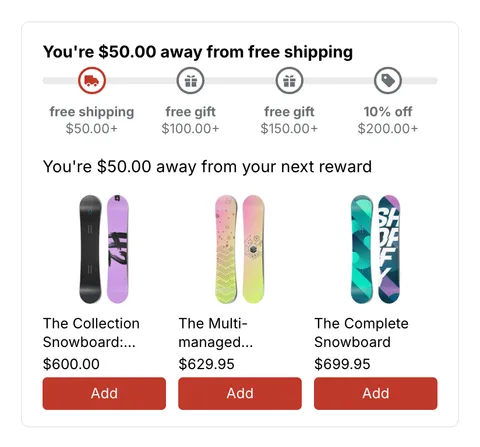
 See it in action
Quick view
Quick view adds a Quick view button to the product cards in your theme, like on collection pages and product grids on the home page. Shoppers choose options and add to cart without leaving the page.
It works on every AndOr plan. It’s off until you turn it on.
What shoppers see
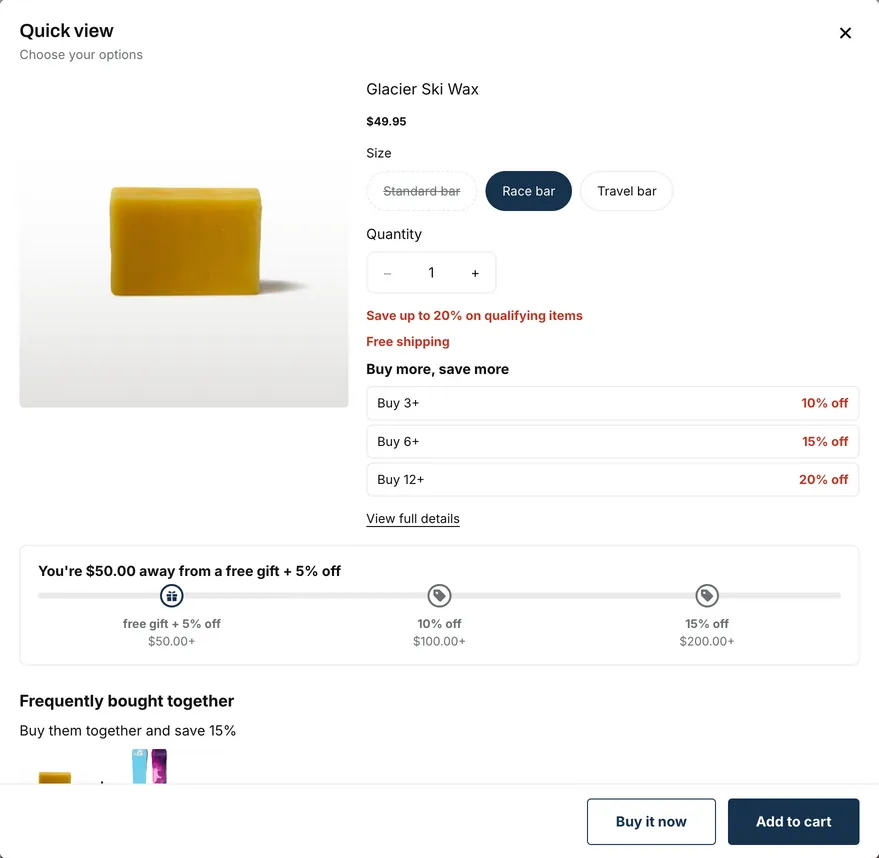
The button opens a window with:
- the product image, name and price. A sale price from your AndOr discounts shows with the old price struck through;
- the options, as swatches or pills, and the quantity;
- Add to cart, which adds the product and opens your cart;
- Buy it now, if you keep it on;
- a View full details link to the product page, if it’s on in your design.
Deals from the product page
Quick view can show the product’s AndOr widgets from its product page. These are on until you turn them off:
- Discount badge
- Sale countdown
- Volume discount table
- Free shipping message
- Gift and Buy X get Y offers
- Buy it now button
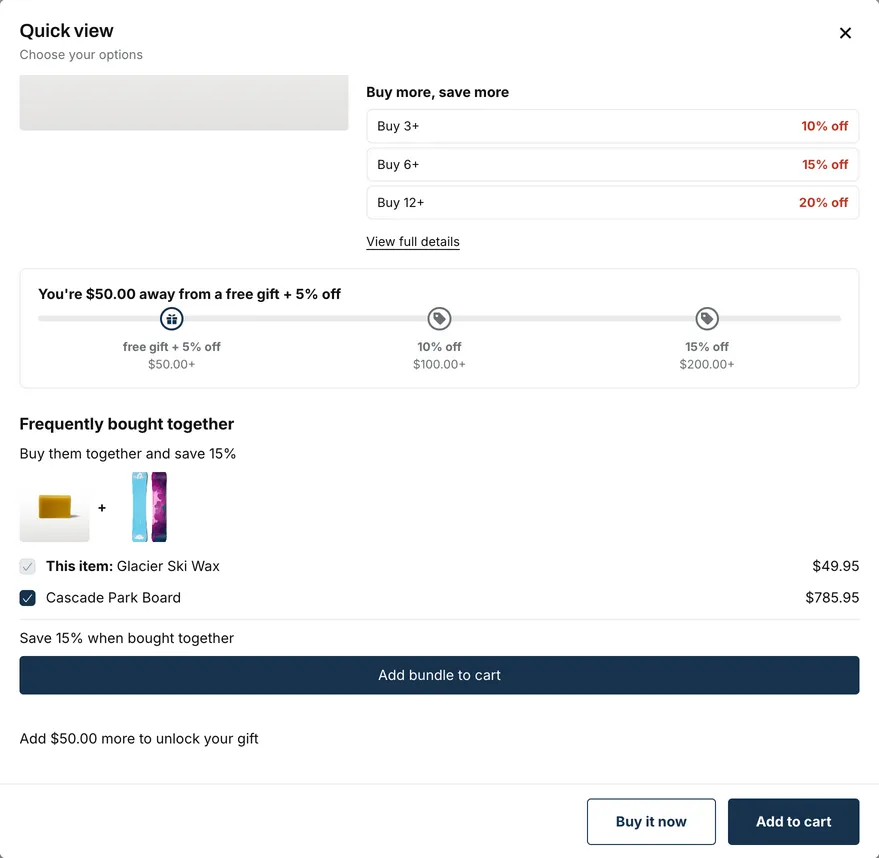
These upsells are off until you turn them on:
- Order goal and rewards bar
- Bundle offer
Turn on Quick view
- In AndOr, open Promotions, then Storefront widgets, then Gift design.
- Under Product quick view, tick Show a Quick view button on product cards.
- Pick what to show from the product page.
- Click Save.
If your theme has its own quick add button, turn it off in the theme editor, so cards don’t show two buttons.
Quick view uses the same design as the gift chooser. See Gift design. The App embed must be on. See App embed.
Good to know
- It’s tested on the Dawn and Horizon themes. AndOr finds the product cards in your theme. If a theme’s cards don’t get the button, contact us and we’ll help.